
New features presented
In addition to improvements that give you a better overview and enable faster work, we have once again fulfilled user requests in this version. With new effects, we are expanding the possibilities of creative video design.
Text animations and fade ins/outs
Transitions in photos or videos, as well as effective text fade-ins and fade-outs, are among the most basic and simplest design tools for adding dynamism to image sequences and text information. In version 2026, you can define text animations more quickly and always know at a glance which settings are used to fade text in and out.
- Text: Fade-ins and -outs can be selected separately (as has been possible with images for some time).
- Text: Duration of fade-in and fade-out can now be edited in Properties
- Separate toolbox categories for text fade-ins and fade-outs
- Transition and text animations: new fade-out type “Matching the fade-in” with one click (always matching the selected fade-in, even with random selection)
- Generate and make editable fade-out matching fade-in (and vice versa) at the push of a button
- Additional tools for handling timed text in the text properties (converting blocks into segments and vice versa, scaling time marks)

External projects
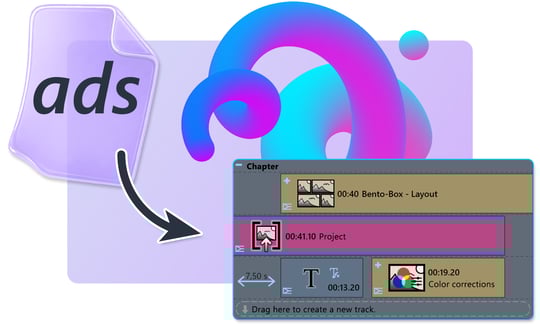
Would you like to combine several projects into one new project? Or reuse parts from existing projects? Or are you working on a project as part of a team? In version 2026, it is possible to combine several shows in the timeline using the new standard object “Project.” If the linked project changes, the entire project is automatically updated and adjusted.
- New object in the toolbox: “Project” for embedding .ADS files
- Embed Vision/Stages projects directly into other timelines
- Automatic detection of project length, automatic adjustment when editing the external project
- Double click opens external project in separate program instance for further editing
- Context menu in the timeline "Convert to / Project" allows creating external project from selection
- Context menu “unpack” external project (so that it is no longer external)
Define video/project thumbnails
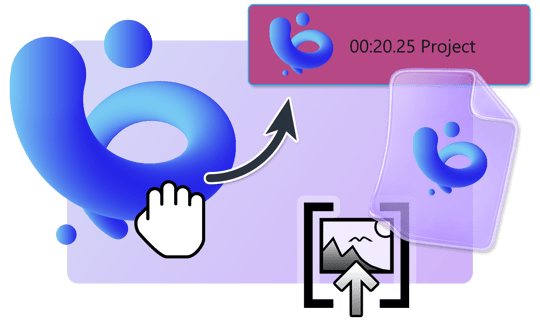
Customize your projects and finished videos with a suitable thumbnail. Specifically export a section from your project and use it as a thumbnail or assign your own image via the project setting. The preview image is then displayed on your exported video, whether you play it on the TV or on the computer, or when the project is embedded as an external project in the timeline.
- Select, save, and assign thumbnails by right-clicking on the playhead in the timeline.
- Change/remove thumbnail via project setting
- Application of the thumbnail during video export and when embedding external projects
Echo object
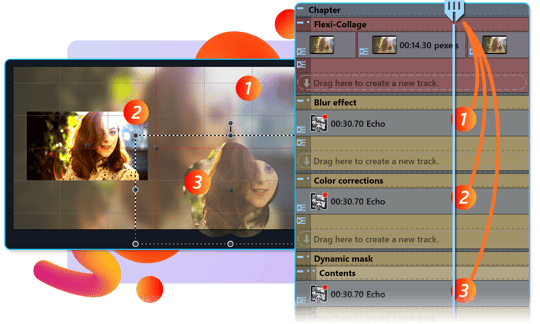
Complex effects often required multiple insertions of content, resulting in numerous parallel tracks. Using the new Echo object instead of multiple copies of content now ensures clearer and more efficient work. All Flexi-Collages can serve as image sources and be displayed multiple times simultaneously using the Echo object. For example, you can make a complex video cut within a Flexi-Collage and then use the content multiple times in different effect filters without creating a copy of the objects.
- New standard object “Echo” in the toolbox to mirror content from Flexi-Collages at runtime
- Echo shows the content of the nearest Flexi-Collage or an assigned, named Flexi-Collage.
- Flexi-Collages can offer content as a basis for effects without displaying it themselves.
- Echo object with source setting “Plugin host” replaces previous “External content” and serves as a filter in other applications.
Note: Upgrade offers can be found in the » AquaSoft Customer area
GPX tracks as route animation
Version 2026 fulfills a long-cherished wish for the popular route animation feature. Display routes traveled and recorded via GPX track in an automated path animation on a suitable map. Didn't track your route, but took photos and videos with GPS info? Import these recordings to generate a route! The timing and appearance of these routes can be customized.
- The map assistant loads GPS data from GPX tracks and displays it as continuous lines on a suitable map.
- Generate path from photos/videos with GPS metadata
- Layout designer: Context menu “Load path from GPX file...” to create paths from GPS data, independent of map material
- Path optimization to reduce the number of points without changing the path shape too much (context menu in the layout designer “Edit / Simplify path”)
- Map assistant marks the center of the map in green.
- Map assistant marks local search hits in red when zooming/moving the map.

New and improved live and object effects + New shape
The new live effect “3D blur” makes content that is moved in 3D space appear neutral or blurred depending on its depth position. The range of normal focus/blur and the strength of the blur can be defined and animated in Stages using curves.
The “Multiplier” effect efficiently displays content multiple times throughout the space. This makes it ideal for 3D text. In Stages, the 3D distribution can be animated using curves at the start and end positions to achieve interesting effects such as screw-like twists.
The “Torn edge” object effect manipulates the edges of its contents, giving them a more or less frayed appearance. You can choose the roughness, variation, and hardness of the rip pattern, as well as the edge color.
Stars, flowers, polygons—with the new dynamic shape “Star / Flower,” you can create a wide variety of object shapes. Choose between angular or rounded edge shapes, the number of points, the radius, and the color or color gradients. Take a look at the mini templates to explore the diverse shapes of the object.
- New live effect “3D blur”
- New object effects “Multiplier,” “Torn edge”
- Dynamic star shape/flower shape, including “Column” division to multiply the shape
- New grouping in the toolbox for all blur effects
- “Monochrome halftone effect” expanded: Patterns can be rotated and contrast can be edited directly in the effect.
- The “Ken Burns effect” now allows for objects that normally cannot be panned with the camera.
- Many effects now work better when the default dwell time is changed.
Extended program settings
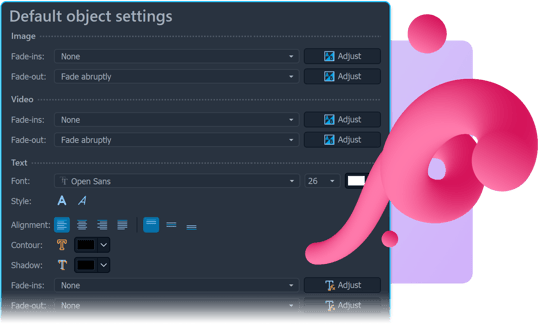
Even before creating a new project, you can set the course for the design in the program settings. Instead of the old standard image settings, you will now find the standard object settings under > Extras > Program settings. Define detailed fade-ins and fade-outs for different objects used to insert images, videos, and text objects.
- Fade-ins and fade-outs can be set separately for images, videos, and text
- Specify text alignment (left-aligned, right-aligned, centered, justified)
- Specify vertical text alignment for text objects
- Image captions and video captions are always aligned at the bottom of the text selection frame.
Text-to-Speech / Speech synthesis
More speaker voices and more emotions: Voice synthesis for your text-to-speech objects gets more options via cloud providers. Use your own API key and take advantage of free quotas or paid services from the respective provider, if available. Influence the speaking speed for your texts and control the type of language with additional prompt inputs (only for ElevenLabs and Google voices).
- Newly supported provider: ElevenLabs (separate registration required)
- Newly supported provider: Google Gemini (only requires your own Google account)
- Text-to-speech dialog with more options, including speech rate for Microsoft voices
- Additional prompt input to influence voice output, e.g., “Speak excitedly and quickly,” “Speak in the style of a storyteller,” “Speak with a Bavarian accent and always emphasize the word Oktoberfest,” “Shout the text.”

Background tasks
Keep track of what's happening “on the side”: The background tasks view allows you to track, monitor, and control actions running in the background, such as thumbnail calculations, proxy calculations, text-to-speech, and transcription. When the program is processing tasks in the background, this is indicated by a speech bubble at the bottom of the program window. The icon can be used to call up the list and, for example, cancel transcriptions or transfer completed content to the timeline.
- Call up running background tasks via speech bubble at the bottom of the program or
- Open background tasks via “Workspace / Controls”
- Task list can be integrated into the program layout.
Per-Monitor DPI
Just a side note, but it's the result of an incredible amount of work. Many years ago, we already supported 4K monitors with high DPI, but if you used multiple monitors with different DPI settings, the software always ran at the DPI setting of the main monitor. With version 2026, program parts that are distributed across different monitors can be displayed at their respective native DPI settings.
- Different DPI values are supported for multi-monitor setups.
- Crystal-clear display on any monitor, even at different scales
- Better support for scaling at 100% and 300%

Export “Audio Only” available
For example, if you produce podcasts or simply want to use the timeline's capabilities for sound files, you can now output your project as an audio file (e.g., .MP3) without images.
- Output projects with “Audio file” selection via Video Wizard
- Selectable audio formats (MP3, M4A, WAV)
Further new features
- Example projects - "9:16 sample" added as an example for portrait videos
- Action “Select objects by aspect ratio” to select all portrait formats in the project, for example
- Toolbox search function - When the search filter is cleared, the selected entry remains in the visible area.
- Toolbox file browser - Filter by used/not used files
- Toolbox objects - Alarm clock and wall clock, confetti animations
- Image editor - The image effect “Mask” can be rotated by any angle
- Updated video decoders and encoders
- Increased performance of video playback, especially with hardware-accelerated decoding
- Improved color accuracy of videos with software decoding
- Layout designer - Increased program setting “Maximum number of objects displayed simultaneously” to 50
- Timeline - “Group selection into container” button expanded to include “Combine selection in external project”
- Timeline - The “Group selection into a chapter” function can now be executed using Ctrl+K (Flexi-Collage still uses Ctrl+G).
- Timeline - “Remove container” button expanded to include “Remove effect”
- Timeline - “Remove container” button now also includes “Unpack project/object” option
- Timeline - Color scheme with fresher colors
- Still images and single frames (Video Wizard) can now be exported as WebP.
- Animated PNGs (APNG) can now also be played back as video.
- Improved support for M3U playlists for background music
- The 3D scene now allows setting a correction factor that controls the depth sorting of objects that are close together or overlapping.
- Loading of JPEG images accelerated by up to 56% in most cases
- Audio files generated by the Sound Wizard are now named after the project.
Note: Upgrade offers can be found in the » AquaSoft Customer area
Do you still have an older version? See what you have missed:
New features in version 2025 (December 2024)
New features presented
Crisp like never before. Smooth like never before.
A faster, smoother Timeline that feels good and an improved, razor-sharp interface were the absolute focus of the developers for version 2025. Fonts, buttons and windows now appear clear and elegant down to the smallest detail.
All "Timeline workers" will be particularly pleased with the increase in speed in their control center. Scroll through large projects, select objects and arrange effects, rearrange chapters, correct typos and put ideas into action immediately - the Timeline, Background track and Properties remain fluid and up-to-date at all times.
- optimized Timeline, Storyboard, Toolbox and Image editor with improved responsiveness
- Timeline performance up to 6000% faster
- improved interface thanks to new graphics engine
- faster interface thanks to hardware acceleration
- razor-sharp lines and text for all resolutions
- Image effects are calculated hardware-accelerated in the editor.
- optimized updating of the object properties
Structure preservation
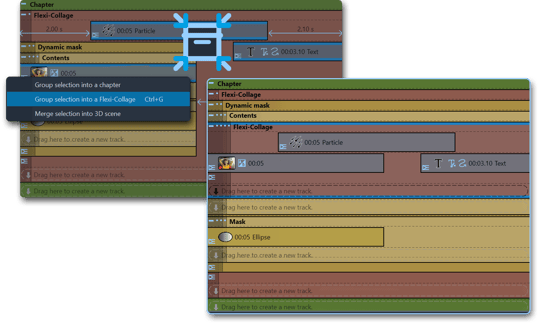
When packing and unpacking objects in and out of multi-track chapter objects and Flexi-Collages, existing track arrangements and distances are now taken into account in the best possible way. This means that when adding or removing containers, the arrangement of your objects and their already coordinated timing is always retained. The additional option of converting chapter objects into Flexi-Collages also enables faster, more intuitive working.
- Combine selection into chapter, Flexi-Collage, 3D scene (Stages) while preserving structure
- Unpack chapters, flexi-collages, 3D scenes while preserving structure
- Convert chapters into Flexi-Collages and vice versa
New effects: "Motion Blur"
With the new live effect "Motion Blur", you can add selective blurring to videos, photos and animations. Simulate natural blurring to make your shots, text animations, particles, zooms and pans in your projects look more realistic. Use the motion blur with color shift to create glitch effects and set surprising visual highlights. It is also possible to export complete projects as a video with motion blur in the video wizard.
- You determine the strength and direction of the motion blur yourself.
- can be combined with other effects
- animate blur with keyframes
New effects: "Knitting patterns"
The new live effect "Kniting patterns", which primarily transforms photos, text and backgrounds into woolly stitch patterns, conveys warmth and coziness. Without having to reach for knitting needles and balls of wool yourself, you can create great surface effects with up to four colors. Slight distortions and irregularities give you small imperfections that make the effect look even more realistic. So you can say for your next project: Handmade with love!
- your image motif as a knitting pattern, also for animations and videos
- up to four individual colors can be selected or original colors retained
- from fine knit to chunky knit: pattern thickness adjustable
Note: Upgrade offers can be found in the » AquaSoft Customer area
New effects: "Shake"
Faster animation of shake or wobble effects that attract the attention of viewers: With the live effect "Shake", movements of objects in all directions can be repeated as often as required and animated in just a few simple steps. Ringing bells, waving hands, powerful explosions, swinging decorative elements or floating text are just some of the ideas that can be quickly implemented with the new effect.
- simple animation of wobble effects
- optional motion blur with strength adjustment
- optional with color shift
New effects: "Glitch"
The live effect "Glitch" creates random image distortion effects on your photos, videos and texts. Pixelated color shifts in the RGB range, noise and brightness fluctuations add up to an eye-catching, animated effect.
- Adjust fineness and thickness horizontally/vertically
- influence fluctuation duration and distance
- can be animated with keyframes
Toolbox
Not only has the performance of the Toolbox been optimized, but new functions and content have also been added.
- direct replacement of Toolbox graphics and backgrounds in the Timeline via drag & drop
- additional captions - six candies
- additional animations - Christmas trees and New Year's greetings as well as seven frames
- new live effects: Motion blur, Knitting patterns, Shake and Glitch
Smarties
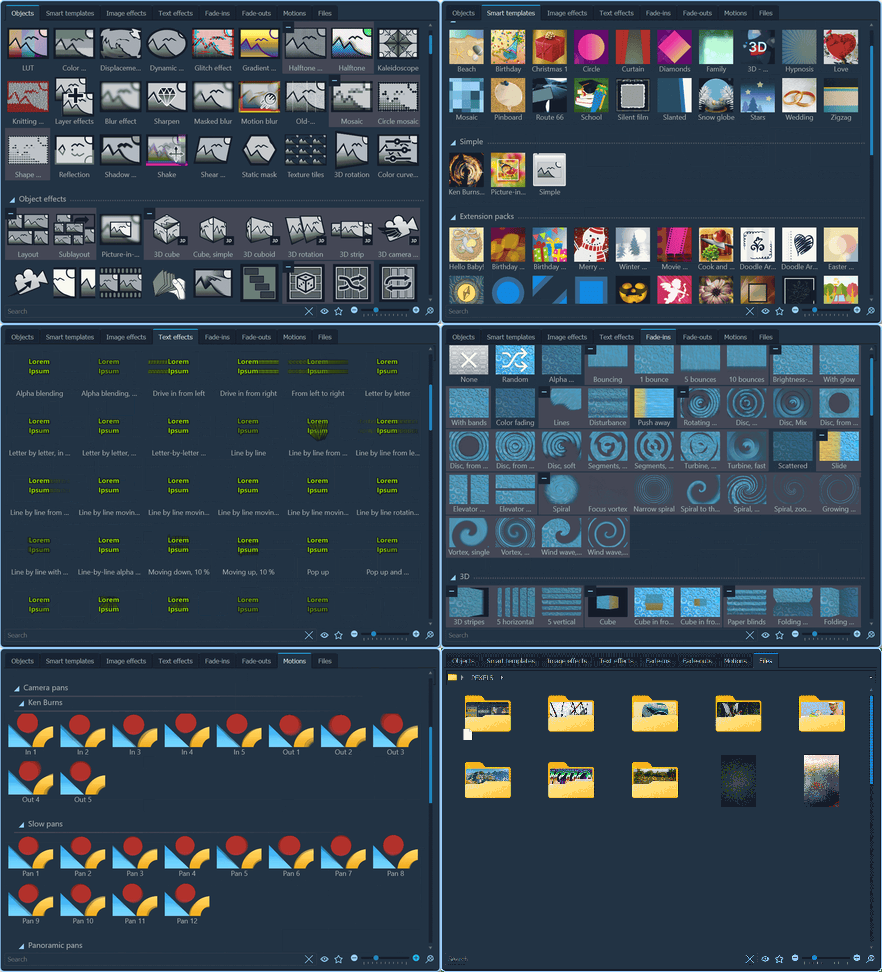
Smarties - a new type of template building blocks - help with quick design. Originally created to allow users to customize their results in AquaSoft Transcriptor they now also offer Stages users a way to reach their goal faster. Instead of an image, a color area or a color gradient, you now use the background smartie and choose from a gallery of all background options and quickly switch between the variants and settings in search of the best background for your project.
- Backgrounds Smartie for static, dynamic and effect backgrounds
- place symbols or your own logo with the Logo object
- more Smarties for content, effects and texts
- save Smarties with your own settings as a Mini-template
- Smarties for optimum compatibility with AquaSoft Transcriptor
Further new features
- Set and convert text segment markers directly in the keyframe track
- Master volume for sounds in the project settings (in addition to the master volume for background music)
- 4K export now also possible in Photo Vision
- Enhancement of the scripting engine
- Fast loader for RAW files
Note: Upgrade offers can be found in the » AquaSoft Customer area
New features in version 2024 (December 2023)
New features presented
Transcription: Speech-to-text
Video editing often has to do with the spoken word. Now you can edit or visualize speech on "sight". A powerful AI recognizes the spoken or sung text of your videos and sounds and converts it into readable text with matching time stamps.
- Display text directly in the Timeline at the appropriate times
- Video and audio editing after visible text possible
- Support for many languages
- Transcription runs locally on your PC without the cloud
- Transcription via CPU or GPU (Cuda-capable) in the background while you continue working on the project
- block-accurate and word-accurate timing
- Animation of the spoken words
- manual editing of the text possible
- Words can be moved in time directly in the Timeline
- optional: automatic translation of the transcription into English
Text-to-speech
Let your PC speak. The new Text-to-speech object speaks your entered text in several voices and languages.
- several voices to choose from
- selectable output languages
- convert texts of any length into sound (text-to-speech)
- fast generation directly from your PC without the cloud
Texts for videos and sounds
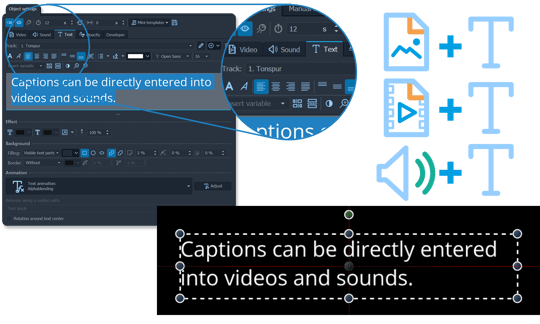
Captions can be entered directly in videos and sounds. Videos and sounds can now do everything on the text side that individual images and the free text object can do.
The additional support of several text tracks means that text can be used as an editing aid independently of the final output.
- Text input possible for videos and sounds incl. timing, animation, etc. as well as in pure text objects
- Add several text tracks and make one of them visible (e.g. receive raw transcription and final subtitles at the same time).
Subtitles for videos / text with timing
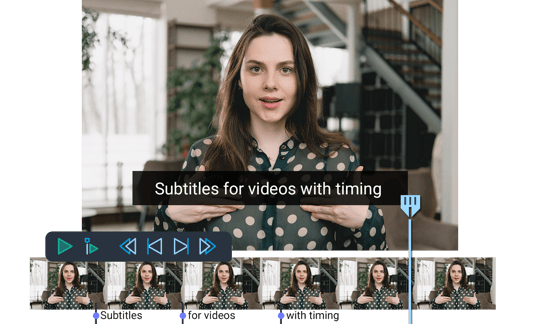
The new version provides you with powerful tools for creating subtitles for videos or designing karaoke videos. Control the insertion of text down to the individual letters. Texts can be divided into blocks and these can be further divided into segments and precisely timed and animated.
- Split texts into any number of blocks that are displayed one after the other
- Dividing texts into segments (within a block), which enables the temporal representation of individual words, word groups or even letters
- Text animation for blocks or segments
- Perfect for displaying subtitles for videos to match the speaker
- also ideal for karaoke videos
- Texts with timing directly visible in Timeline and timing editable
- Line breaks within a paragraph possible (Shift + Enter)
Note: Upgrade offers can be found in the » AquaSoft Customer area
Text backgrounds
Texts can now have a background themselves. It starts with a simple colored area and ends with complex shapes around each letter for active words in the video subtitle.
- Background automatically adapts to the visible text or fills the specified area in different variants.
- Text background in various shapes (rectangle, circle, ellipse)
- Backgrounds can be used for text animations, e.g. to emphasize the current word.
- Design options: Rounded corners, edge distance, contour and much more
Text animations
Create animations for your titles and captions even more harmoniously and with new control options.
- selectable timing curve for text animation for smooth movements (smooth start and stop)
- Text can be faded in backwards
- Alignment during animation can be set horizontally and vertically.
- new animation start position can be set: relative to the letter position
- Zoom and rotation based on text and segment center (word, line, paragraph, etc.) possible
Sound
Sound objects can also change their playback speed and the OPUS format is now supported.
- changing the playback speed of sounds
- automatic adjustment of the object length when the speed changes
- infinitely variable speed change can be set over the entire time using any curve (acceleration, deceleration)
- Sound format OPUS is now supported.
Video formats
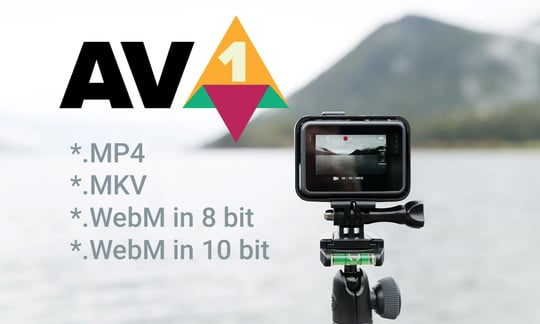
Full integration of the new AV1 video format and even better support for many video formats thanks to updated video decoders and encoders.
- Video output also possible in AV1 (MP4, MKV, WebM in 8 bit)
- additionally (MP4, MKV, WebM in 10 bit)
- optional hardware acceleration for AV1 when encoding and decoding with NVIDIA GPUs (from Ada Lovelace chip)
- improved handling of proxy videos
- Video output with NVIDIA hardware acceleration now supports "Constant Quality" mode.
Video output in even better quality
Even better quality is possible thanks to supersampling and two-pass encoding.
- Video export possible using two-pass encoding
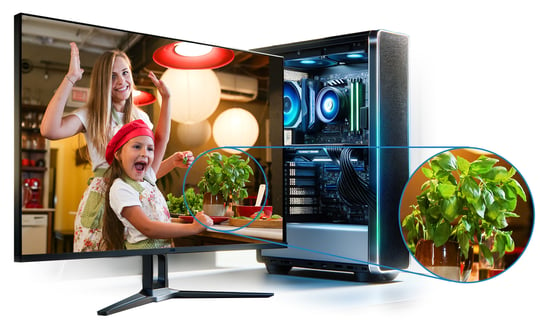
- Video rendering with supersampling for even better quality. The image is calculated with higher details and then scaled down to the target resolution.
Video speed even easier to change
If you change the speed of videos, their duration is now automatically adjusted to match the previous content.
- Changing the video speed adjusts the object duration in the Timeline.
- Changing the speed via curve adjusts the duration live in the Timeline.
- "Intelligently adjust duration" can now also be used for the video duration.
Note: Upgrade offers can be found in the » AquaSoft Customer area
Images
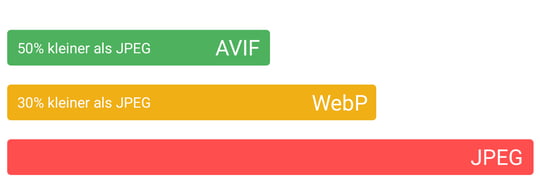
Images can now also be integrated in WebP and AVIF format.
- Support for WebP and AVIF image formats
- For greater clarity, text frames only appear in the Layout designer and marks in manual input after the first letter has been entered.
Route animation / Decorated path
The objects around the decorated path offer completely new design possibilities:
- 77 new path styles
- Path can be animated by moving its content (Marching Ants)
- Path width adjustable via a curve
- Path can be shortened back to a point at the end of its animation
- existing path styles optimized for higher resolutions
flexible simple shapes
Designs and effects are often made up of simple shapes. Rectangles, triangles and circles have become much more powerful as basic building blocks.
- colored contours (inside, outside, middle, freely adjustable)
- Rectangle with rounded corners (optionally adjustable separately for each corner)
- Triangle with rounded shape possible
- Shapes reversible (filling outside the shape)
- better antialiasing
- Parameters can be animated
- additional blend modes (multiplication, subtraction, ...)
Color gradient with patterns
Color gradients as elements for effects and backgrounds with their shapes can now do more - by using less. If you reduce colors, various patterns stylize the color transition. The same new patterns are also available for the gradient conversion effect.
- 15 different methods and patterns of color transition (for Gradient and Gradient Mapping)
- adjustable pattern size
- Pattern reversible
- additional blend modes (multiplication, subtraction)
Color correction effect
To quickly make a few color corrections, even on videos, or even influence the entire project, the new color correction effect is here. It combines several correction methods with simple sliders.
- Brightness
- Contrast
- Black point / white point
- Gamma correction
- Color correction in RGB and HSV color model
Note: Upgrade offers can be found in the » AquaSoft Customer area
Camera flight in 3D and 2D
To pan across a large number of subjects distributed in 2D or 3D space, you can either create paths yourself or use the new 2D camera pan and 3D camera pan objects, which automatically calculate the camera movement.
- 2D camera pan flies from image to image on one layer.
- adjustable panning duration
- Return to the starting point or uninterrupted flight possible
- Background scene can be defined (e.g. a map).
- 3D camera pan flies to object in space.
- New menu item "Action / Distribute images in 3D space" places all selected objects randomly in 3D space - ideal for 3D camera panning
new light and shadow effects
The Shadow and Light leaks overlay effects add atmosphere to the scene. Shadows animate subtle shadow patterns and light leaks simulate light shining into the lens.
- Light Leaks with adjustable colors, strength and speed and much more
- Shadow overlay with 37 integrated shadow shapes (window grids, plants, etc.), adjustable soft focus, animation speed and much more
Intelligently adjust duration
Is an animation too short or too long? Whether an object or an entire collage, you can use the "Intelligently change duration" function to easily adjust the duration, taking into account all curves and much more.
- The duration of each object can be "intelligently adjusted" via a button next to the object duration in the properties.
- Entire Flexi-Collages or chapters including all child elements can also be edited.
- Scaling of playback speed possible
- adjusts curves of effects
Effects with improvements
- LUT effect: with new function "Amplify LUT"
- Layer effects: new combine mode "Screen", as well as new modes only show content or effect
- Animated noise: three additional pattern algorithms and 4 new blend modes
Decorations / Animations / Backgrounds
Your projects are not only brought to life by your material, but also by the surrounding elements. The Toolbox offers a large number of elements for direct use. The new version adds even more.
- 138 new backgrounds, thereof 26 animated
- new dynamic shape "Stripes"
- 12 new captions: 9 text markers, 2 flares and text input effect
- 77 new path styles for decorated paths
Extras
- Performance: Shader cache for delay-free working with effects
- The time display in the Layout designer now always shows the position of the playhead and not just during playback.
- Modifier shortcuts (Ctrl, Alt, Shift) for copying, rasterizing, etc. standardized throughout the program
- Sorting the backgrounds into static and dynamic in the Toolbox
New features in version 2023 (December 2022)
New features presented
Performance
- Proxy editing (see below).
- Cache - previously loaded images are cached to allow faster work (settings under "Extras / Program settings / Memory usage")
- Multi-core optimizations - even better utilization of many CPU cores
- Player optimizations - faster loading of images and other elements, optimized calculation of motion paths, and more
- Video output up to 20% faster
- Background track more efficient and without burdening foreground work
- Audio waveforms load up to 12 times faster
Proxy editing
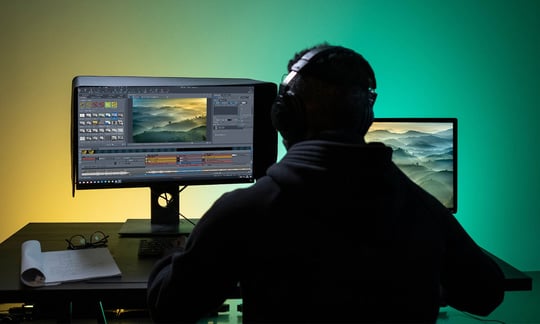
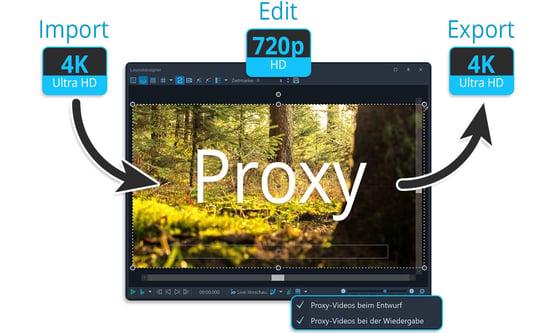
In large projects, proxy videos can be used to speed up editing and previewing. This function can be activated for each video individually or for all videos at once. In the program settings you configure the proxy editing function with setting options such as size, storage space and quality.
- Use proxy video for faster editing and previewing in large projects - for example, edit many tracks of 4K footage, even on weaker computers.
- Proxy can be activated per video or for all videos at once
- "Program settings / Proxy interface" offers setting options (size, storage space, quality, etc.)
Audio
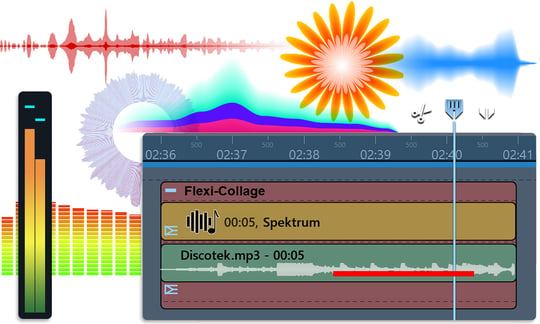
The audio section has gained significantly. On the one hand, it is now possible to directly "listen" to audio from video and sound objects, which allows you to find your way around long videos or audio tracks more quickly. Thus interviews or podcasts are quickly edited.
Furthermore, there is an audio visualization to show the audible sound as a visual effect in the final video in projects. This is an interesting enrichment for music videos, podcasts or other audio projects.
Audio is now displayed more beautifully in the Timeline and associated objects are now colored differently so that they can be distinguished more quickly. The volume level is visualized in the Layout designer, which makes it easier to adjust the volume.
- Preview audio / Audio scrubbing
- when moving the playhead
- with the Shift key pressed under the mouse cursor
- Adjustable via "Extras / Program settings / Timeline / Audio scrubbing"
- Audio spectrum visualization as an effect for your own projects (e.g. for music videos, podcasts, etc.)
- Waveform display in best quality with antialiasing and new coloring in the Timeline
- Sound objects with their own color in the Timeline
- Volume level display in the Layout designer
- Audio waveforms load up to 12 times faster
Mini-templates
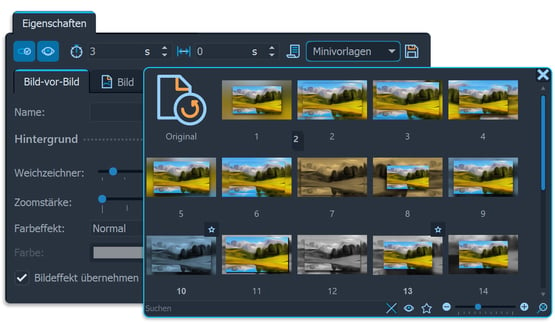
AquaSoft Vision and Stages offer many flexible effects that can have very different effects depending on the settings. Mini-templates are examples or ready-made presets for all effects. They can be selected and tried out with one click. This saves you time and allows you to really exploit the potential of many effects. You can also save your own settings as a mini-template.
- Mini-templates are sets of settings for all objects (image, text, video, effects, etc.) that can be selected from a gallery with a single click.
- Mini-template selection can be found in the Object properties for each object.
- hundreds of ready-made templates for many object types
- save your own mini-templates
Timeline
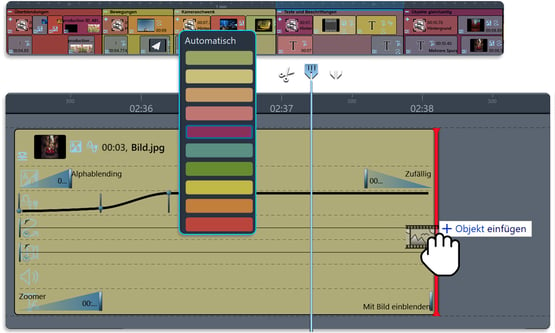
The central working tool becomes even more intuitive. When zooming, you now always end up exactly where you want to zoom. Drag and drop within the Timeline is also more precise. In Stages, keep track of large projects with the new ability to color all objects yourself. The "rubber band editor" for editing curves, such as those found in volume or keyframe tracks for effects, has learned.
- Zoom
- Zoom directly to mouse position (Ctrl+mouse wheel)
- Zoom to playhead or selection if zoom slider is used.
- Zoom levels intuitively always visually the same size
- Drag&Drop optimized
- Object colors selectable
- Rubber band editor
- Right-click on "rubber band" points opens context menu with various editing options
- delete all points
- set point type
- delete all points left/right of it
- Double-click changes the point type and Ctrl+click deletes the point
- Right-click on "rubber band" points opens context menu with various editing options
- Time grid can be set in frames/seconds (see "Extras / Program settings / Timeline")
Text
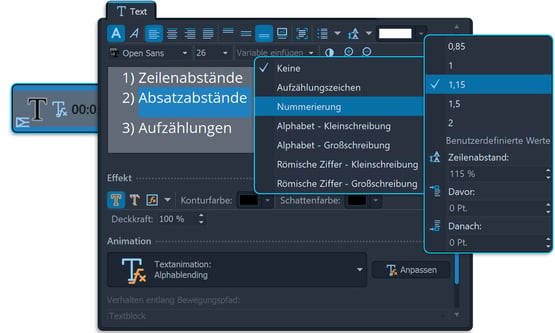
Thanks to the now adjustable line and paragraph spacing, it is even easier to achieve the desired display. In addition, enumerations and bullet points can now be defined. Especially for the latter, the new option of displaying texts paragraph by paragraph and thus also bullet point by bullet point comes in handy.
- Line spacing, paragraph spacing adjustable
- Enumerations and bullet points
- Text fade in/out possible paragraph by paragraph
Video output
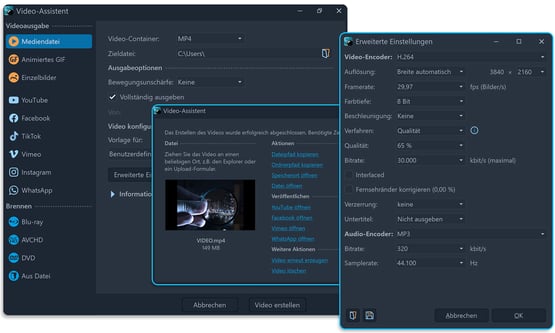
A brand-new video output wizard with up to 20% faster output clearly summarizes all settings. A single click is now enough to start the video calculation. All detailed settings are still available. In Stages it is now also possible to output videos with 10 and 12 bit color depth.
- 10 and 12 bit color depth with BT2020 color profile
- Video wizard with 1-click output
- up to 20% faster output
- simplified setting of the target format
- Drag and drop the finished video directly into the browser
Internet Workflow
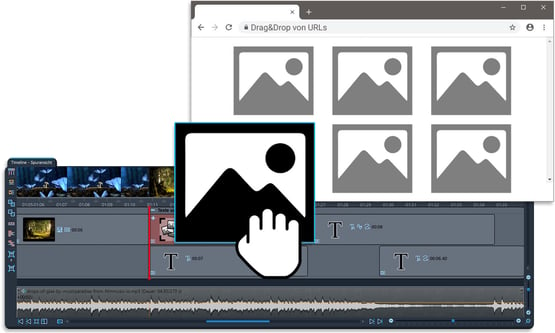
Materials from the Internet can now be inserted directly into the program. Simply drag the image, sound or video file from the browser into the Timeline and the program automatically downloads and inserts the file. In addition, a URL previously copied in the browser can be inserted via the menu item "Add / Import / From web address".
- Paste from URL with automatic download
- Drag & drop of URLs with automatic download
Note: Upgrade offers can be found in the » AquaSoft Customer area
New effects
Live effects offer design and editing options for image and video material. Improve the presentation or use them as a creative stylistic device. Nine new Live Effects have been added with this update and the object effect "3D Cuboid" provides an even more versatile way to create 3D effects.
- 3D cuboid
- Gradient mapping
- Audio spectrum visualization
- Animated noise
- Sharpen
- Bloom
- Kaleidoscope
- Reflection
- Shear mapping
- Color reduction
Enhanced effects
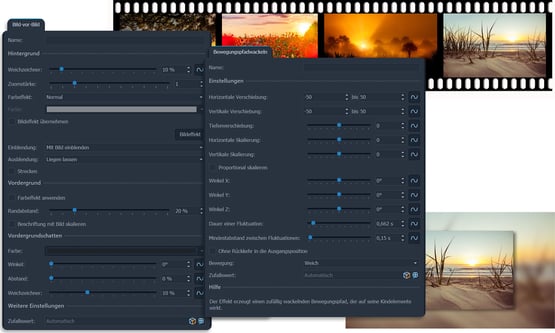
Not only are there new effects, but existing effects can also do more. In particular, the shadow option in the "Picture-in-picture" effect should please many users.
- Picture in Picture effect
- Shadow option for foreground image
- Separate image effect settings for the background
- Blur: Brighten option
- Camera wobbling, transparency fluctuation: adjustable random value
- Motion path wobbling
- Option without return to the starting point
- Proportional scaling
- Path type soft/hard
- adjustable random value
- Filmstrips: optimized performance and new option "Leave in place"
Transitions
One of the most striking features of a slideshow or creative video editing are transitions. Four new basic transitions, each of which can be varied in many different ways, provide the wow effect. The following applies to all transitions: their timing can be adjusted so that they harmonize even more smoothly with your photos and videos. When using randomly generated transitions, more suitable parameters are now selected so that the effects appear more balanced.
- New basic transitions
- Spiral
- Zoom
- Rotating rings
- Vortexes
- Improved transitions: "Slide", "Push away", "Bounces" with motion blur and color shift
- New transition variants: "Elevator doors" horizontal and vertical
- Transition timing/progression can be set for each fade (Soft end, Soft start, Dynamic, Hard, etc.).
- Individual timing curve can also be used in Stages.
- Transitions appear smoother by default
- Random selection of transitions and parameters optimized
- Standard duration accelerated from 2 to 1.5 seconds (can be changed via program settings)
New templates
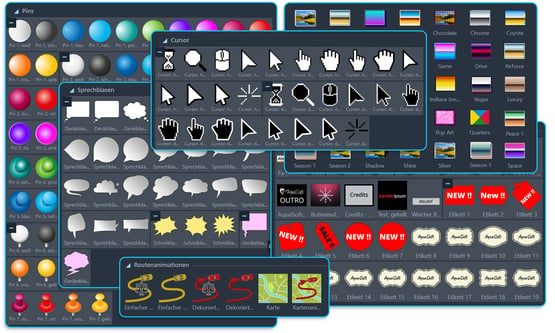
The Toolbox offers even more practical design elements. For example, versatile graphic elements such as mouse pointers, labels, pins, speech bubbles and much more have been added. Two new animated paths that are always uniformly fast, camera pans with automatic adjustment to the image duration and other image effects round off the package.
- 61 camera pans
- 4 LUTs (Black and white with contrast)
- Image effects
- Mystic glow
- 1 color gradient
- Duplicated text
- 40 special effects for large texts
- Sample project: Text with image effects
- Decorations
- Pins, 7 variants in 12 colors each
- 37 speech bubbles
- 28 mouse cursors
- 19 labels
- Route animations with automatically balanced path
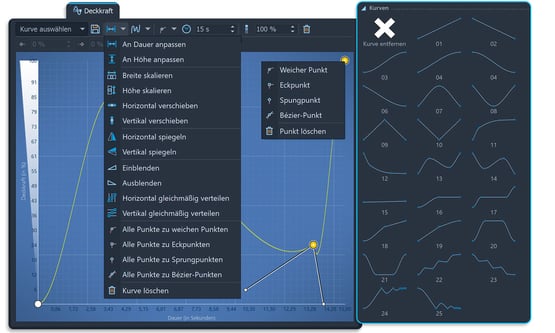
- 4 curves (for transparency and timings in Stages)
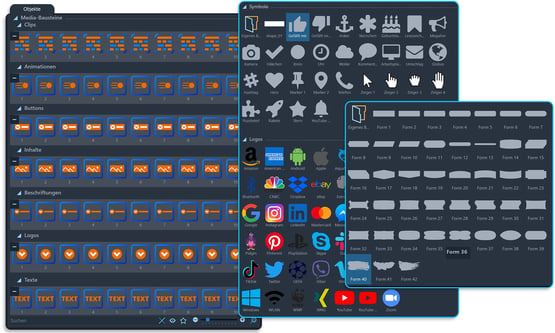
Media Bricks
Media Bricks are a new type of template for efficiently creating complete animations. Individual elements such as buttons, logos, images or videos with transitions can be used to quickly create short clips, promotional videos for Internet ads or product presentations. The templates automatically adapt to portrait and landscape formats.
- Photo and video animations
- Logo animations
- ready-made clips incl. logo animation for texts, images and videos
- Call-To-Action-Button
- all elements easily customizable, colors, icons, shapes selectable
- Logographics of the major social media platforms for direct use in the Toolbox
User Interface
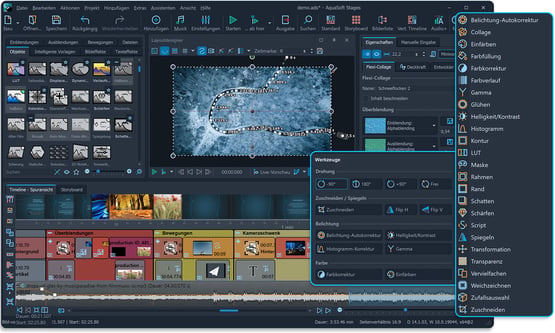
The colorful icons catch the eye as soon as the program starts - sharp in every resolution and matching the color scheme. For more Timeline space, the menu bar has been merged with the program title bar. The practical "manual input" for motion paths is now integrated directly into the standard views.
- Title bar combined with main menu to save space
- colored vector icons, adaptive to the color scheme
- Icon color can be changed to monochrome in the program settings
- Image editor with icons in the effects menu
- "Manual input" integrated into the standard views (next to the "Object properties")
- Selection galleries with menu items "Collapse/expand all"
Extras
Many of the included improvements remain unmentioned as they are "only" the basis for future functions, improve internal processes or are very specific micro-optimizations. However, a few small things are still worth mentioning:
- Curve editor: new functions to distribute times or values evenly horizontally or vertically
- Number of recently opened projects can be set under "Extras / Program settings / User interface"
- many internal optimizations
Note: Upgrade offers can be found in the » AquaSoft Customer area
All new features at a glance
This mind map provides an impression of the wealth of new functions. Fans of this form of presentation can click on the image of the mind map to see it larger.

New features in version 13 (December 2021)
New features presented
New mask effect "Static mask"
Apply a mask to videos and photos with just one click. Conveniently change the mask image from a gallery or choose your own.
- New object "Static mask" for videos and photos
- Easy application by dragging and dropping from the Toolbox onto a video or image
- Over 100 new masks (usable in the new mask effect or image effects)
Modern design
The user interface has become much more modern.
- A total of 8 different designs available - four in elegant blue tone and four neutral gray designs
- User interface completely redesigned for more clarity and better readability due to adjusted contrasts
- Use of modern fonts
Integration with Adobe Premiere Pro and OpenFX plugin
If you use other programs for video editing, you can now create animations with AquaSoft Vision and directly include them in other applications - without waiting, conversion or quality loss. For example, you can create a title animation or lower third in Vision and use it with transparency and in high quality in other applications. If you modify your Vision project, the changes will be immediately visible in the other program.
Use Vision projects within Adobe Premiere Pro
- Including transparencies
- High precision (up to 32 bit color depth per channel)
- Custom import resolution
- Sound is also imported
OpenFX plug-in for programs like DaVinci Resolve, Vegas, Natron etc.
- Vision projects can be integrated directly into the third-party program via plug-in.
- Filter function: Vision can accept an input image from a third-party program and use and modify it as desired in the Timeline using the "External contents" object - even multiple times.
Optimized Timeline
- Crisp display in each of the three Timeline styles
- Distinct colors in the Timeline ensure good distinction of the elements
- Improved drag and drop from Toolbox and file browser
New extension packages available
Version 13 extends its capabilities which are used by the three new extension packages:
3D - your photos in a new dimension
With Photo Vision, Video Vision and Stages, your animations will reach a new level. You can arrange and animate photos, videos and graphics in all three dimensions.
- Create parallax effects that add a sense of wonder and excitement to your presentation.
- The new effect "3D cube" can show 6 photos simultaneously and animate them as a rotating cube.
- Create a virtual photo wall with the new "3D strip" effect.
- "3D scene" object with real 3D editor enables the animation of photos, videos and texts in space, including correct depth sorting and transparencies.
Movements as smooth as butter with Motion Blur
Razor sharp or naturally smooth - decide whether animations and camera pans appear with motion blur or hyper-realistic. No more moiré effects on zooms and pans across detailed or complex shapes.
- Export entire projects with motion blur
- Moiré effects during zooms are a thing of the past
- Even when panning, individual images or videos blend into each other so smoothly that the viewer's eye can fully engage with the actual content.
- You determine the strength of the Motion Blur yourself.
Adjust and change colors - for photos and videos
Camera model or lighting conditions are different, skin tones look unnatural, a cinematic look is missing? Color grading can change the color tones of a photo or video. This creates a completely new visual impression.
- Easily apply color effects to a single or multiple objects at once via live effect.
- 15 ready-made styles are included.
- Load other color tables into the LUT effect (images, cube files, ICC profiles)
- Create your own variants with the integrated editor
Layout effect - fits together perfectly
Bring your images and videos together in the new layout effect. Create dynamic galleries and collages with fixed or automatically created arrangements, where images can also swap places.
- Multiple photos or even videos combine to form one unified impression.
- Layouts can be nested within each other as desired.
- Directed or random arrangement
- Determine margins, internal spacing, rows, columns and animation
- The automatic image swap function is an eye-catcher!
- Aspect ratio for the contained elements selectively or automatically adjustable
Note: Upgrade offers can be found in the » AquaSoft Customer area
3D scene and 3D editor
With the 3D scene object, you enter the world of 3D animation. Everything within the 3D scene can be edited with the integrated 3D editor and animated in 3D. You can also use the option of hierarchical animation with nested 3D scenes. 3D scenes not only bring the tools, but also take care of the correct depth occlusion of all objects during display.
- 3D scene object
- 3D editor
- hierarchical animation with nested 3D scene objects
- correct depth coverage incl. transparencies in 3D space
The Toolbox - your well-organized helper
The newly organized Toolbox aims to get you to the building blocks you need for your project faster. Quickly find what you are looking for. Your most used tools are always at hand.
- The display of categories and sub-categories in the Toolbox has been improved.
- Images that have already been used are now marked in the file browser.
- Mark favorites with star symbol
- Keep an overview: decorations, backgrounds, effects can be searched and displayed in the Toolbox by keywords. Tags (also for your own saved templates) and better categorization (e.g. for backgrounds and Smart templates) ensure that you find what you need.
- Categorization in the Smart templates
On the fast lane
Discover the improved Timeline and benefit from the easier start
Full control with the background track
The innovative background track above the Timeline makes the overall context of your current editing visible. Scale the height of the background track directly in the Timeline. Preview your project in full at any time while playing in the preview and navigate reliably through your presentation. By consistently calculating and displaying the "stuck" objects, you get an optimized project control and avoid errors.
Project start with chapter tracks
For your next project, you can now start with multiple tracks. Whether you use them for photos, videos, music, sounds or text objects remains entirely up to your preferred way of working. In the program settings, you can specify whether you want to start with chapter tracks and if so, with how many.
Permanent tracks
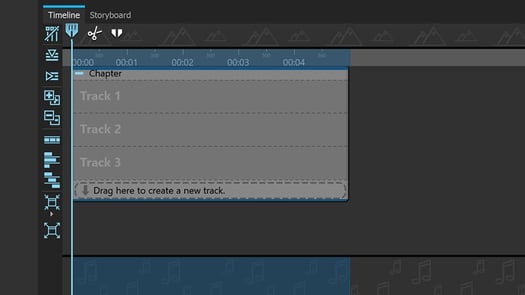
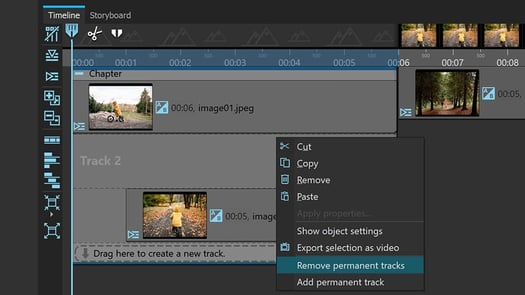
Chapters and Flexi-Collages now support your design habits with Permanent tracks. This way, empty tracks can be created and kept permanently if needed. This leads to more overview and freedom within your extensive projects. In addition, any elements in the Timeline can now be switched invisible without disappearing from the Timeline.
Know what's going on with the Live preview
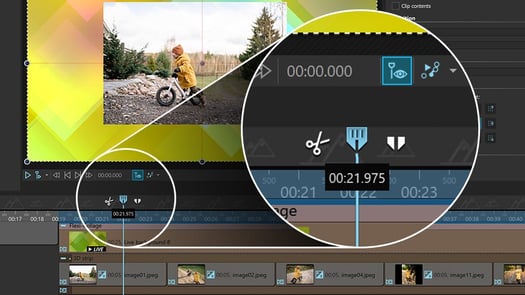
With the Live preview that can be activated in the Layout designer, you view defined sections in action - controlled via the Playhead. Simply mark the area you want to view in the Timeline and drag the Playhead over it at any speed. Use the function to view individual chapters, to check the effects more quickly or to navigate to specific scenes during video editing.
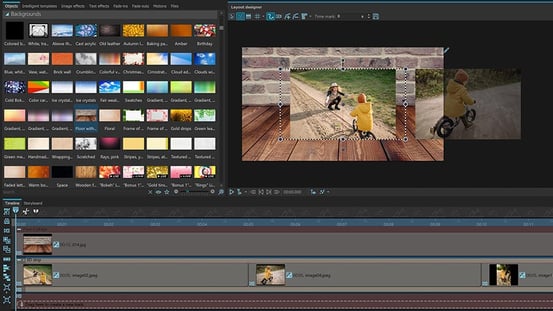
New backgrounds, decorative elements, emojis, transitions and templates
Stages is a tool for those who like to take creativity into their own hands. With numerous new backgrounds, templates and decorative elements, you take your design ideas to a new level.
New Smart templates
New Smart templates Circle, Diamond, Ken-Burns, Picture-in-picture and Simple ensure that even beginners or those with little time achieve an appealing result.
New backgrounds and decorations
- 22 new backgrounds in 4K resolution are available.
- More than 400 new decoration shapes from the areas of sports, food and drink, animals and plants Adjust the color as you like.
- Freshen up your images with emojis. 95 colored emojis are included.
New transitions
- 15 new transitions with lines and echos
- "Echo" blend variant selectable for "Shapes" and "Image-based" transitions
- Adjust the duration of fade-ins and fade-outs more efficiently in the Object properties
New things about keyframes and curves
Timed and precise animations can be realized with the new features for keyframe tracks, transparency diagram and curve editor.
- The new point types Jump and Bézier provide abrupt changes or elegant animations.
- With Bézier handle points, time curves can be controlled even more finely.
- Switch intuitively between Soft, Hard, Jump and Bézier with a double click on the handle point.
- All markers can be easily removed with a right click.
- Let curves for the sequence of animations be automatically generated. The curve generator now works with jump points and is more precise than ever before.
- Move keyframe markers while holding down the Alt key to maintain the time interval to the follower.
- Curve generator for sawtooth and square wave curves now uses jump points for higher precision with fewer points.
- Sawtooth curve can be generated mirrored (ascending instead of descending movement).
More color and image effects

In version 13, you will find many new image effects in the Toolbox as well as a new dynamic rectangle shape that allows you to design countless color backgrounds and Lower thirds yourself.
- 61 new image effects in the Toolbox (51 color gradients, 2 frames, 7 masks and one color)
- New Dynamic shape "Color gradient" with any number of colors in the gradient shapes Linear, Bi-Linear, Spiral and Circle
- Own image effect can be applied and edited to tile graphics in the Live effect "Texture tiles".
- Save image including applied effects from Image editor
- BitmapFX effect "Color gradient" with any number of colors, in different shapes: Linear, Bi-Linear, Spiral, Circle
More export options

Get the most out of your project: still images, collages, teasers and individual video parts from long shows.
- Single frame export at the Playhead position by right-clicking
- Partial export of individual project sections by entering the time in the Video Wizard
- Export WebM videos and image sequences with transparency
- Video generation from Playhead position
- Video generation between split Playhead
Note: Upgrade offers can be found in the » AquaSoft Customer area
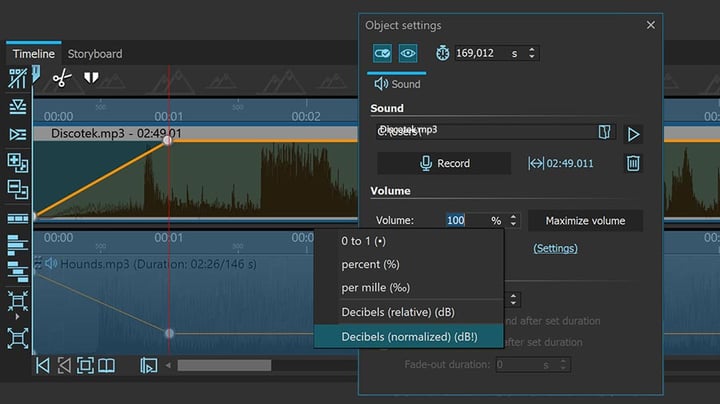
Masterfully adjust sound and music
Music, sound recordings, sound effects - hitting the right note makes a big difference in your project.
- Adjust the sound with the setting "Decibel normalized (dB!)". Soundtracks from different sources receive the same volume level.
- Switch between volume units in the Object properties.
- Support for M4A files
Animated routes and maps rethought
Where to go? Your travel route spreads out on a map. That makes a difference, especially with the new map styles.
- 6 new map styles - "Light" and "Dark" in Photo Vision 13, "Outdoor" and "Street modern", plus "Street map (DE)" and "Street map (ENG)"
- Style selection now with map preview in the Wizard
- Clean drawing of the travel route lines at sharp angles
- Draw smoother route paths and curves with Bézier handles
- Change vehicle and route graphics with your own image effects.
What else is new?
- Insert images directly from the clipboard: To quickly insert screenshots without having to save them first, or for quick exchange with your image editing software, you can insert image data directly from the clipboard into your project.
- Embed and use transparent videos
- Color management: Color profiles embedded in images are now taken into account when loading.
- Own aspect ratio for Flexi-Collage workspace possible
- Height-adjustable gallery areas in the Object properties
- Consistent names in Toolbox and Timeline (Mask effect, Simple path, Decorated path)
- In addition to the Project settings, the Program settings can now also be reset to default values.
- Quality levels "Excellent" and "Best (Non-Realtime)" render effects and transitions with 64-bit precision.
- HDR videos can now be played.
- Support for HEIC/HEIF files
- Export Wizard modernized
Note: Upgrade offers can be found in the » AquaSoft Customer area
System requirements for Photo Vision, Video Vision and Stages 2026
- Operating systems: Windows 11 from version 23H2 and 10 from version 21H2 with 64-bit (ARM64 with limitations when exporting videos or replaying in the Player)
- Processor: Multi-core processor recommended
- Graphics card: at least 1GB graphics memory, DirectX 9c
- RAM: 4 GB
- If your system has more resources, these are also used to increase performance.