|
<< Click to Display Table of Contents >> Text-in-Sprache |
  
|
|
<< Click to Display Table of Contents >> Text-in-Sprache |
|
 Text-to-Speech VIDEO VISION STAGES Text-to-Speech allows you to generate a sound file from the text entered. This is inserted into Timeline as a sound object. You can find the effect in the Toolbox under the Objects tab in the Audio section. |
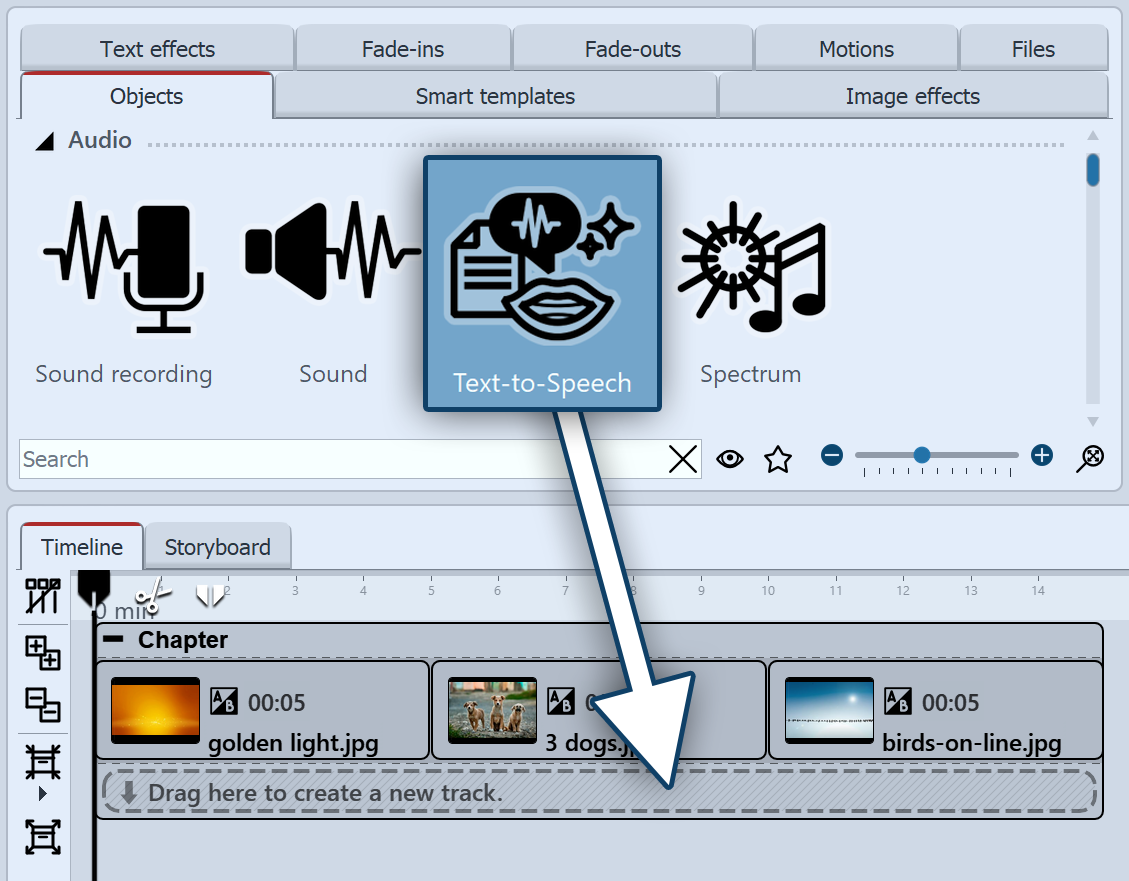 Using Text-to-Speech Drag the Text-to-Speech object from the Toolbox to the Timeline to the position where you want a comment to be spoken. The Text-to-Speech dialog opens. |
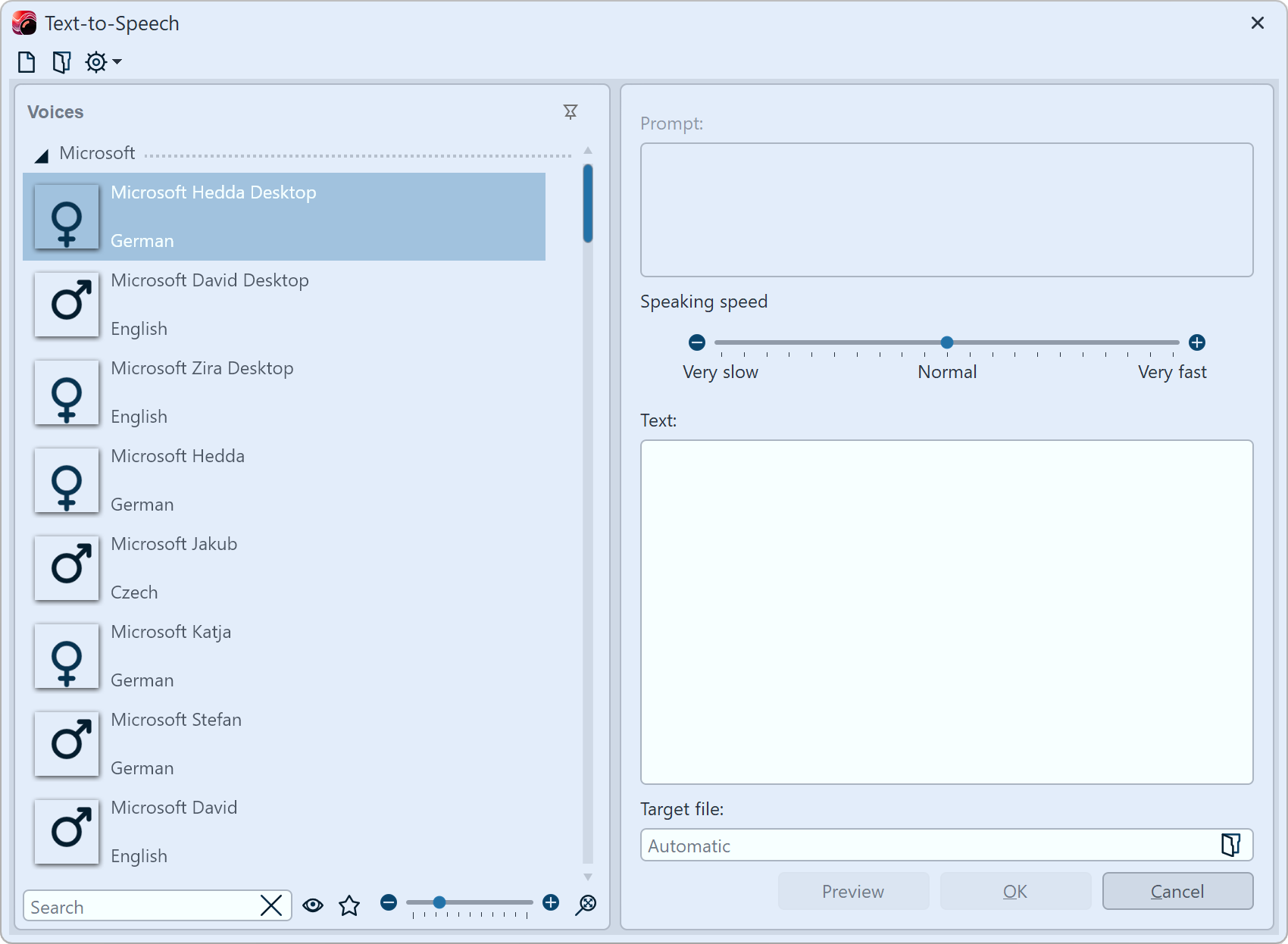 Input dialog for Text-to-Speech Select the voice with which you want your text to be spoken. You can choose from - from the desktop voices supplied by Windows for the voice output. - optional voices from Google Gemin (with your own connected Google account) - optional voices from ElevenLabs (if an own API key has been stored) Use the cogwheel icon to access the recording settings for differentiating the sound settings (e.g. mono/stereo) and the Account settings for connecting with Google or ElevenLabs in the Program settings. Select a Target file and the directory in which the sound file is to be saved. Enter the text to be spoken in the text field. As soon as text is available, the Preview button is activated, with which you can listen to the voice output. Click OK to create a Sound object and insert it into the Timeline.
|
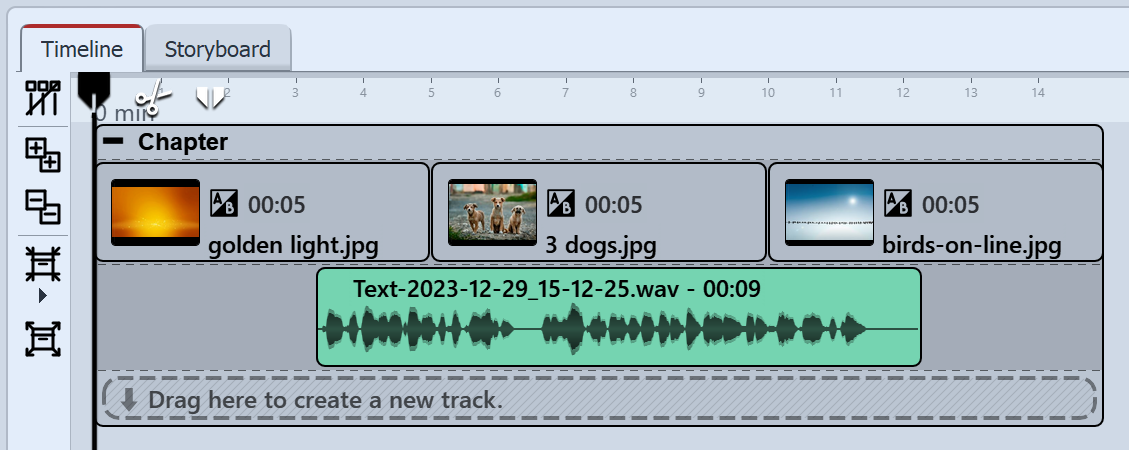 Sound object with generated language in the Timeline You will now see the Sound object in the Timeline. You can move or cut the sound object.
|