You can save your slideshows or video projects in the form of ads files. (See also chapter Saving a project)
With the help of the Project object, which you can find in the Toolbox under Default objects, you can integrate other existing projects into a show. Among other things, this allows you to reuse an existing intro for each project, merge several sub-projects into one or collaborate with several people on one project.
If the linked external project changes, the update and adjustment is carried out automatically in the overall project and, if necessary, in other projects.
1 Use project object VIDEO VISION STAGES
Insert project
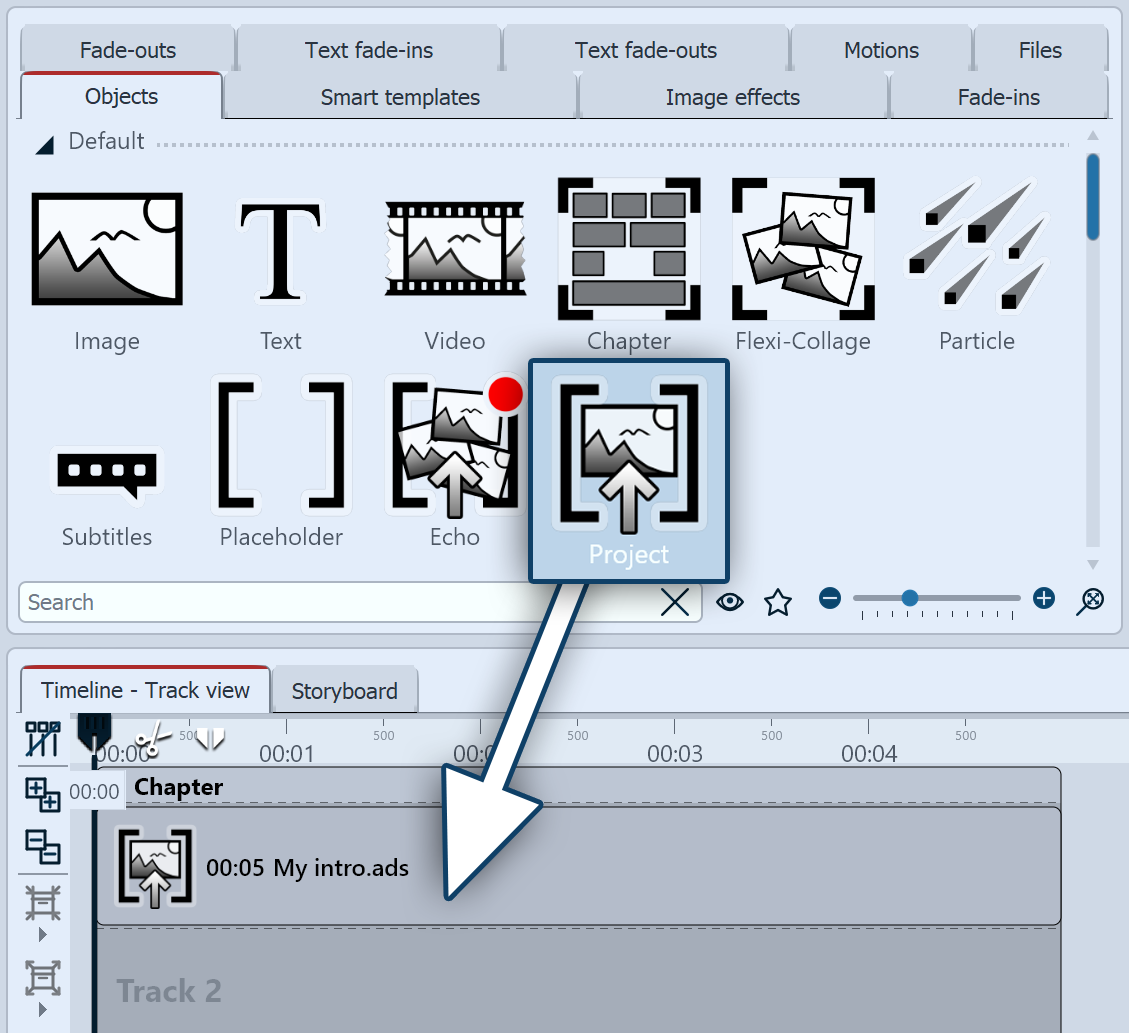
To insert an existing external project into an open project, drag the Project object from Toolbox to the desired position in Timeline.
Then select the desired project file (*.ads or *.aso) from your computer and click on Open.
The Project object appears in Timeline with the display duration and the name of the external project. Add any other content you like to Timeline.
Double-click on the Project object to open the external project in a separate program instance for further editing.
The contents of the background music track are not taken into account when importing a project. Instead, use sound objects to add music to your project.
External project has changed
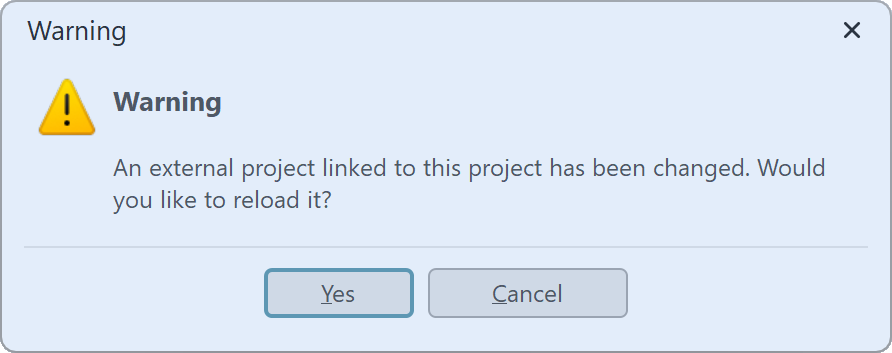
If an external project embedded in your overall project is changed, you will receive a message.
Confirm with OK if you want the changes to be applied immediately.
If you select Cancel, you can force the change to be applied at a later time by selecting the external project in Timeline and selecting Extras / Reload / Reload all data of the selected objects.
2 Export selection as external project VIDEO VISION STAGES
Export selection as project
You can work in a project and transfer parts of it to your own project.
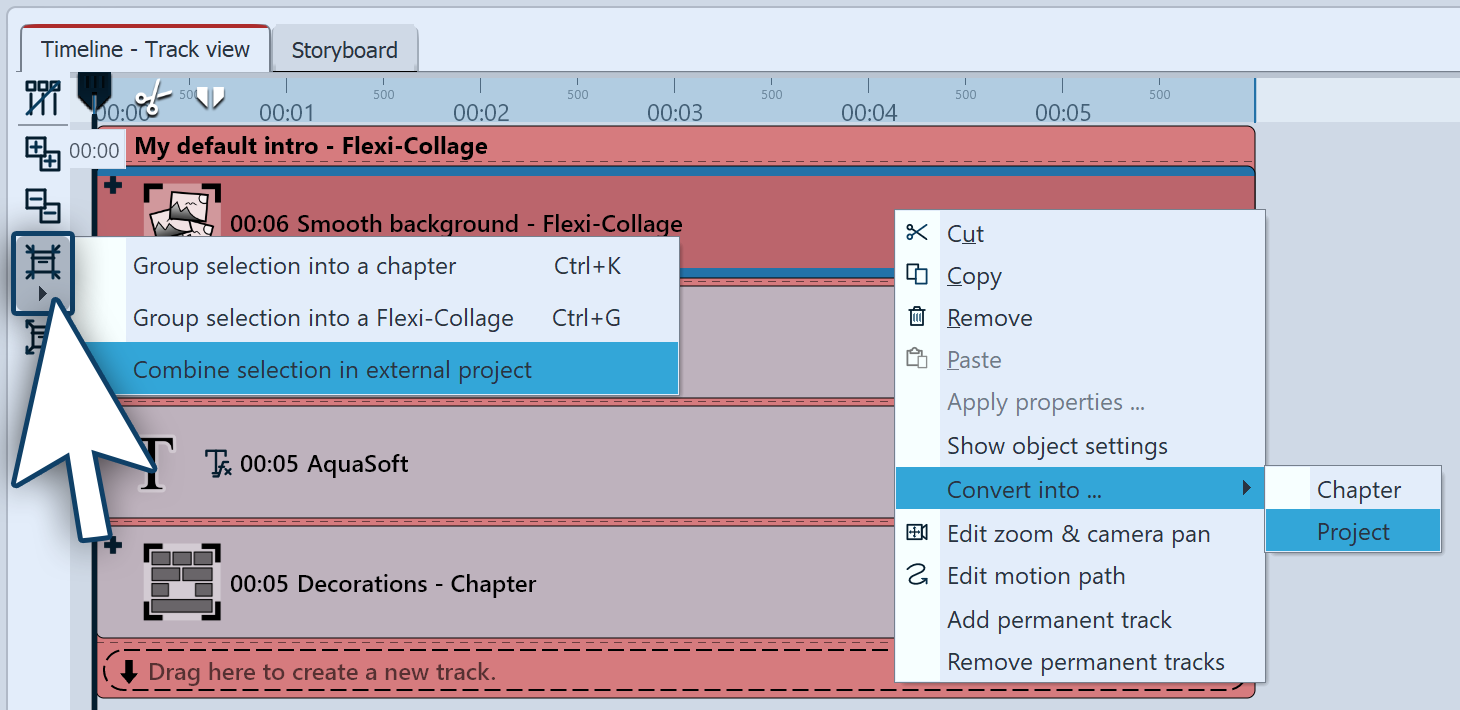
To do this, place the desired parts in a Chapter object or in a Flexi-Collage. Right-click on the Chapter or the Flexi-Collage with the right mouse button and select Convert to / Project. Alternatively, select the Combine in container button on the left-hand side of Timeline and Combine selection in external project.
A Save external project dialog opens. Select a storage location for the new ads file on your computer and assign a name.
The selected part of the project now appears in Timeline as a Project object. Double-click on the Project object to open the external project in a separate program instance for further editing.
The contents of the background music track are not taken into account when exporting as an external project. Instead, use sound objects to add music to your project.
3 Extract external project to Timeline STAGES
Unpack project (in Stages)
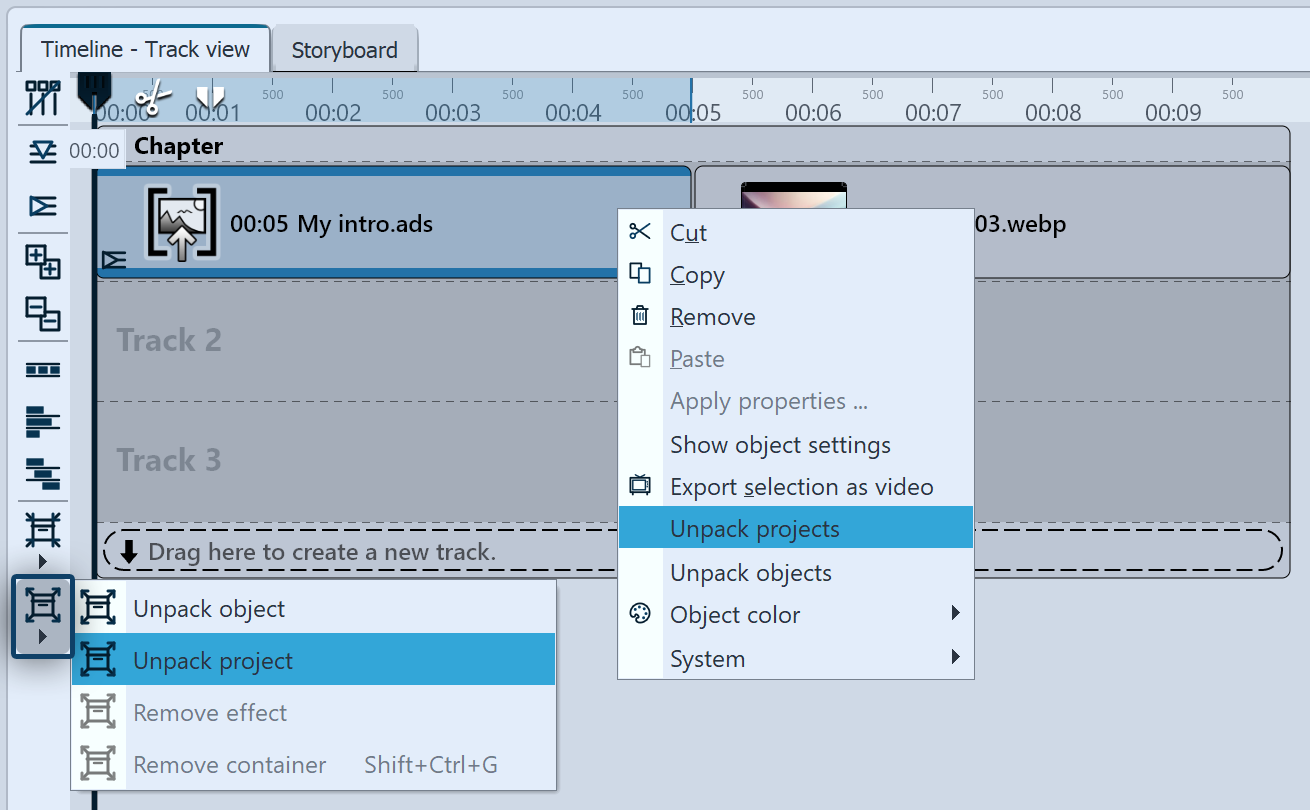
In AquaSoft Stages it is possible to unpack an external project in Timeline so that it is no longer external. Right-click on the Project object in the Timeline and select Unpack projects. Alternatively, select the project in the Timeline and select the Remove container button on the left-hand side of the Timeline and Unpack the project.
When working in a team, everyone can work on a part of the project. All participants should work with an identical annual program version or the person responsible for the main project should have the latest version. Ads files that were created with an older version can be played and edited in higher versions, but the reverse is not possible.