|
<< Click to Display Table of Contents >> Multiplier |
  
|
|
<< Click to Display Table of Contents >> Multiplier |
|
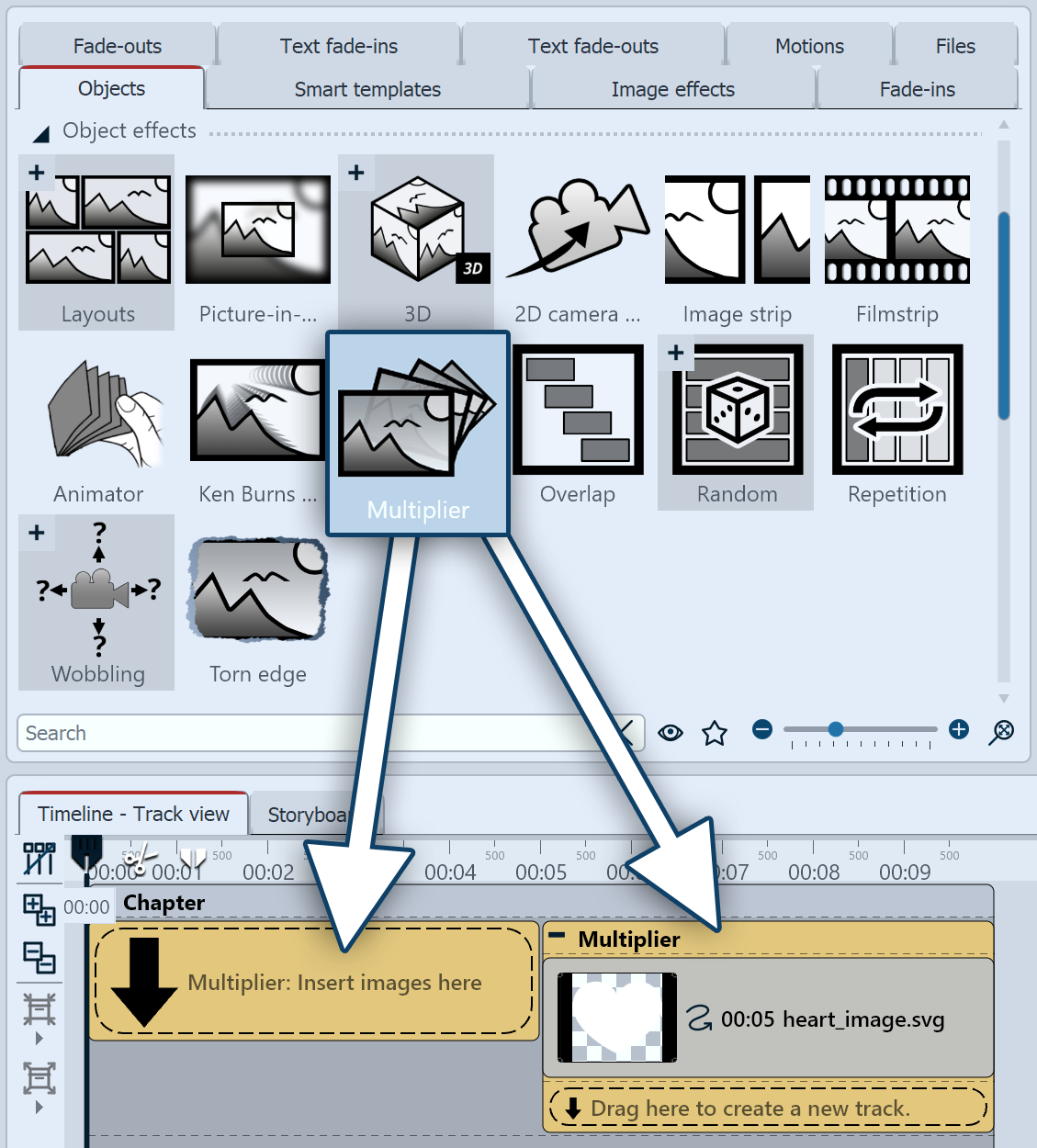
 Multiplier You can find the "Multiplier" effect in the Toolbox under the Objects tab in the Object Effects section. The Multiplier takes its content and displays it multiple times, showing a transition from the starting position to the ending position. This allows, for example, complex patterns to be rendered based on a graphic or 3D text to be simulated.
|
|
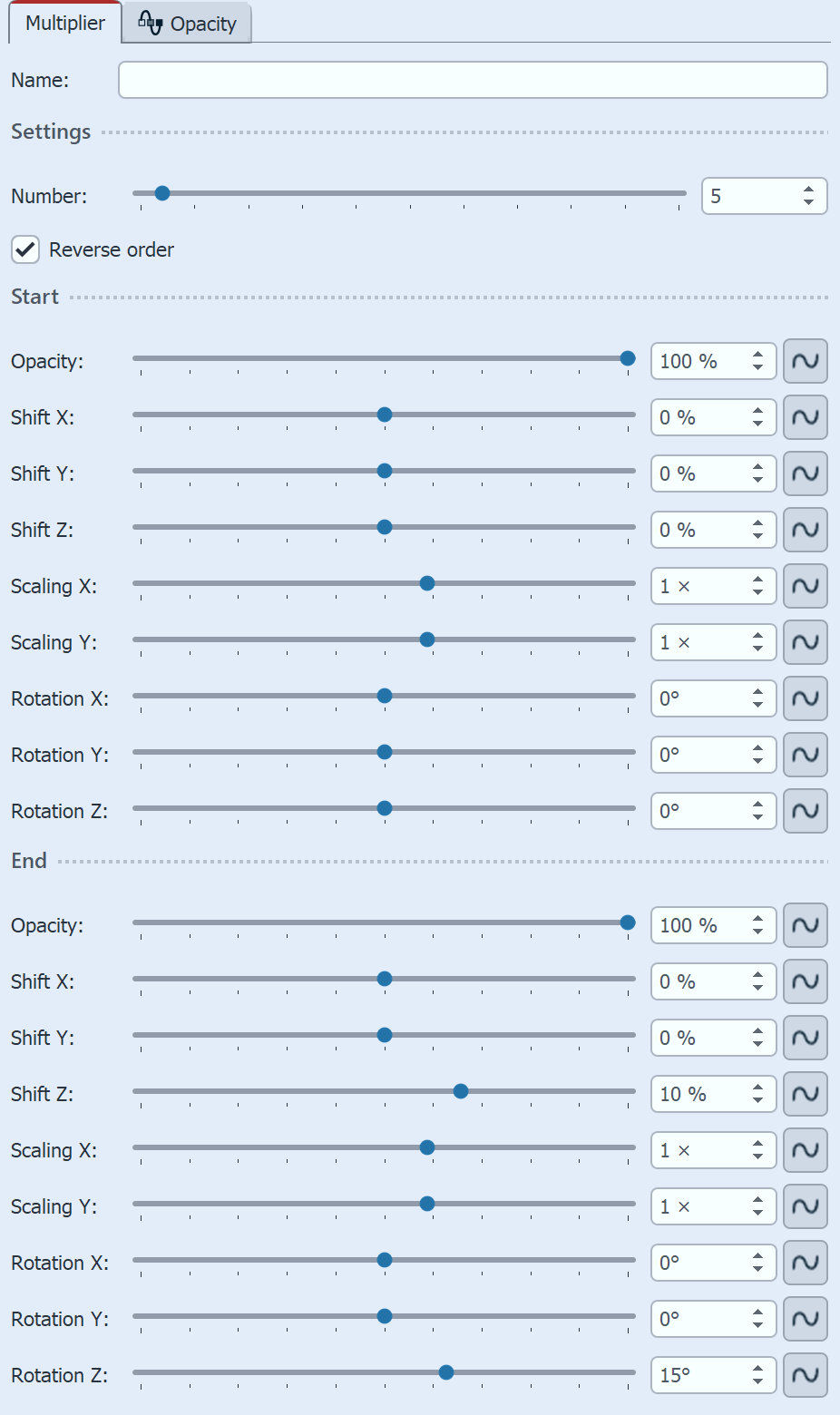 Multiplier settings 2 Multiplier settings In the Properties section, you can select the multiplication factor using the Number field. Use the additional settings for Shift and Rotation to determine where the content is positioned at the start and end, and use Scaling and Opacity to control how the content looks at the start and end. If only the X scale or only the Y scale is changed, the content is compressed; if both values are set to the same value, the content is enlarged or reduced. The effect automatically arranges the copies from start to finish. STAGES If you add curves to the settings, the effect will be animated.
|
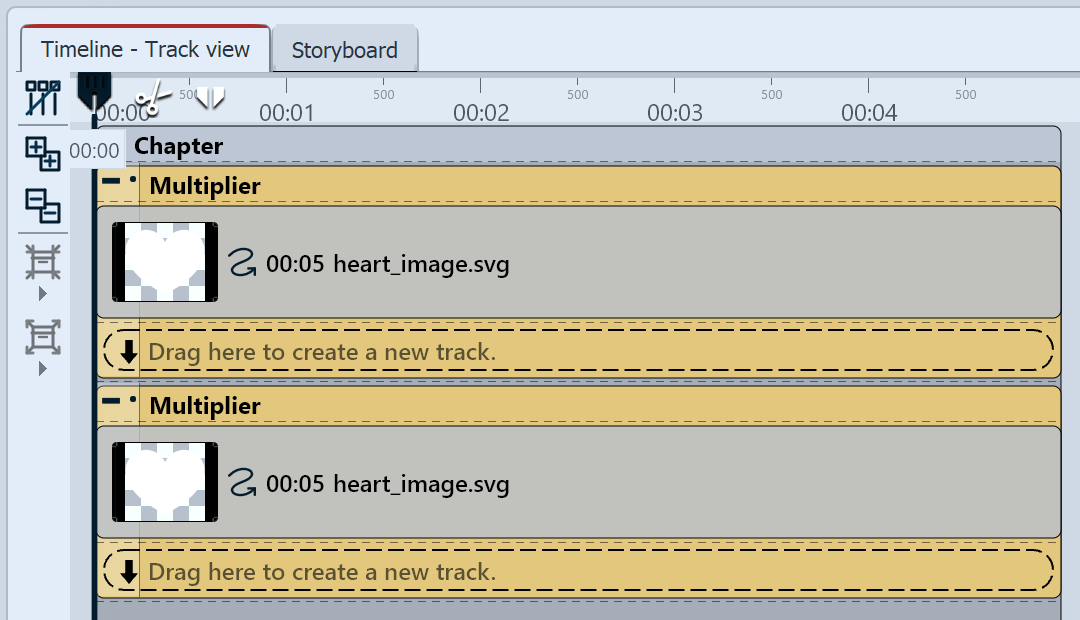 Structure of the heart garland example in the Timeline 3 Example of use for the Multiplier: Heart garland Insert the Simple Heart shape into the Timeline. The heart is positioned in the center of the Layout designer. Adjust the effect properties as follows (settings not mentioned remain as defaulted in the effect): Number = 9 Start End
|
The nine hearts are now arranged from left to center, and they get larger from left to center. (Figure 1) Copy the Multiplier effect and place it on a track below the first Multiplier effect. |
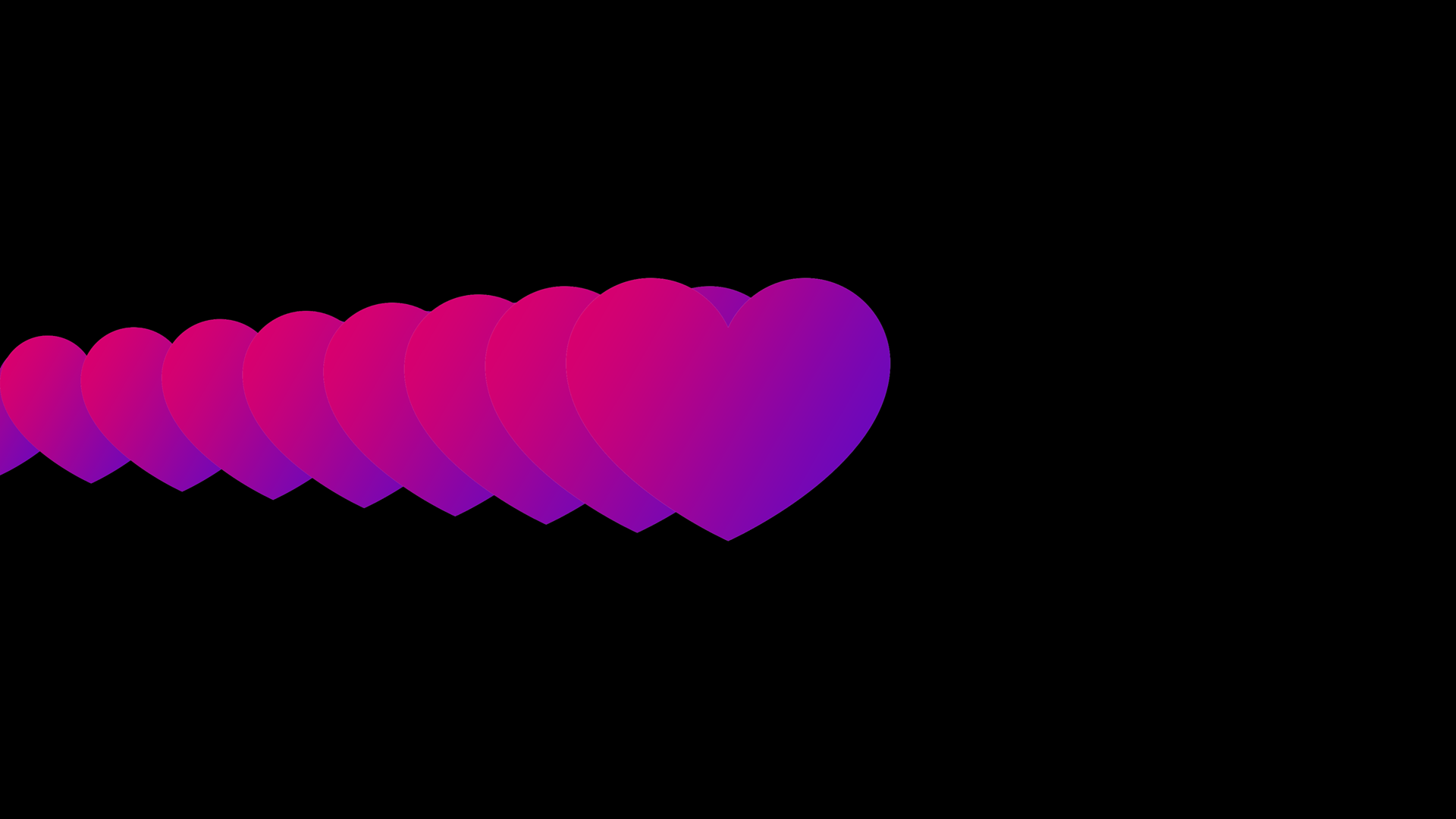 Heart in the first Multiplier effect |
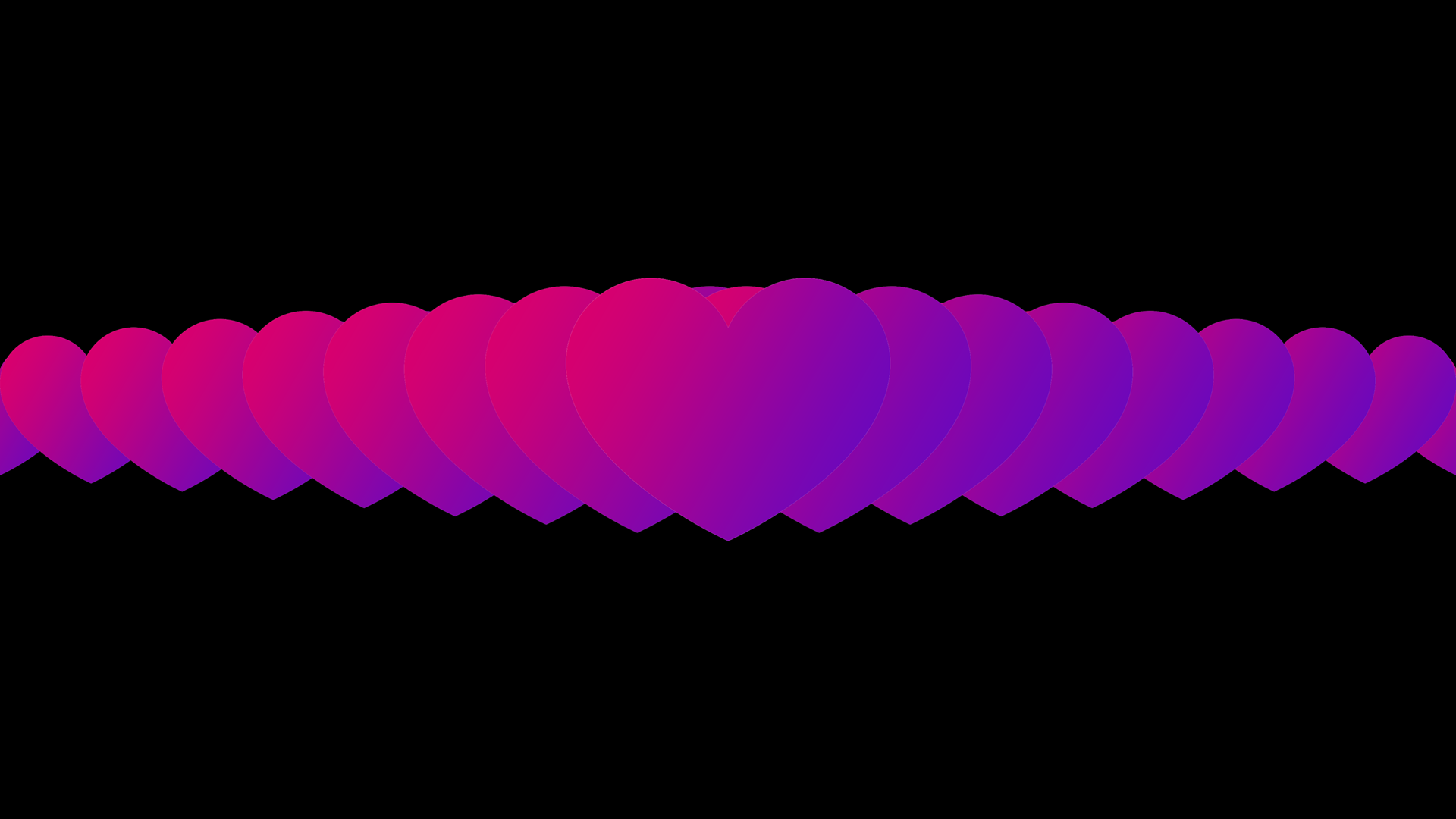 Multiplier 1 and Multiplier 2 combined |
|
Watch the video "Hypnotischer Tunneleffekt" to learn how to build an endless tunnel in Stages using the Multiplier. |