|
<< Click to Display Table of Contents >> 3D Blur |
  
|
|
<< Click to Display Table of Contents >> 3D Blur |
|
3D Blur
You can find the effect in the Toolbox under the Objects tab in the Live Effects section. The 3D Blur effect makes inserted objects appear either sharp or blurred, depending on their depth position in 3D space.
The best way to understand this effect is to place an object in the effect that has a motion path assigned to it, which moves the object between two different z-positions.
Blur Settings VIDEO VISION STAGES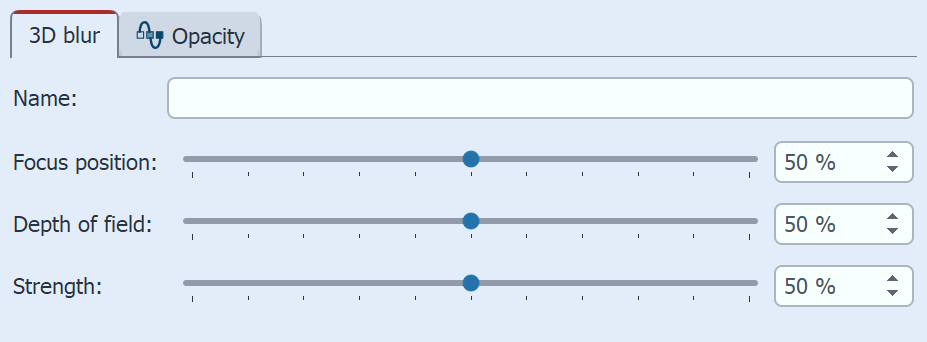 Settings for 3D Blur In the Properties window, you can modify the effect's behavior. You can assign a custom name to the effect. This improves organization in the Timeline. In the Depth of field field, you specify how large the area of sharpness is. The depth of field extends in both directions from the focal point. The Strength slider lets you adjust how much the areas outside the focus are blurred. STAGES All three values can be adjusted using the effect duration by animating them with the curve icon. |
|
The video "3D Blur Effect" explains how to create a "blur/sharp/blur" effect using a circular intro and photos. |