|
<< Click to Display Table of Contents >> Text animation |
  
|
|
<< Click to Display Table of Contents >> Text animation |
|
 Edit text animation Under Animation, you can select a fade-in and/or fade-out for the text with which it is faded in or out. If you click on the Tfx Adjust button next to the animation selection, you can customize the respective animation. If an existing Text animation is modified, it appears with an asterisk after the name. |
|
You can also get the Text animation editing window by right-clicking on an image in the Timeline and using Select text animation. |
In the menu for editing the Text animation, in addition to the customization options, you will also see a preview of the selected fade-in or fade-out. Both can be controlled in detail. To do this, select the Zoomer option in the top field .
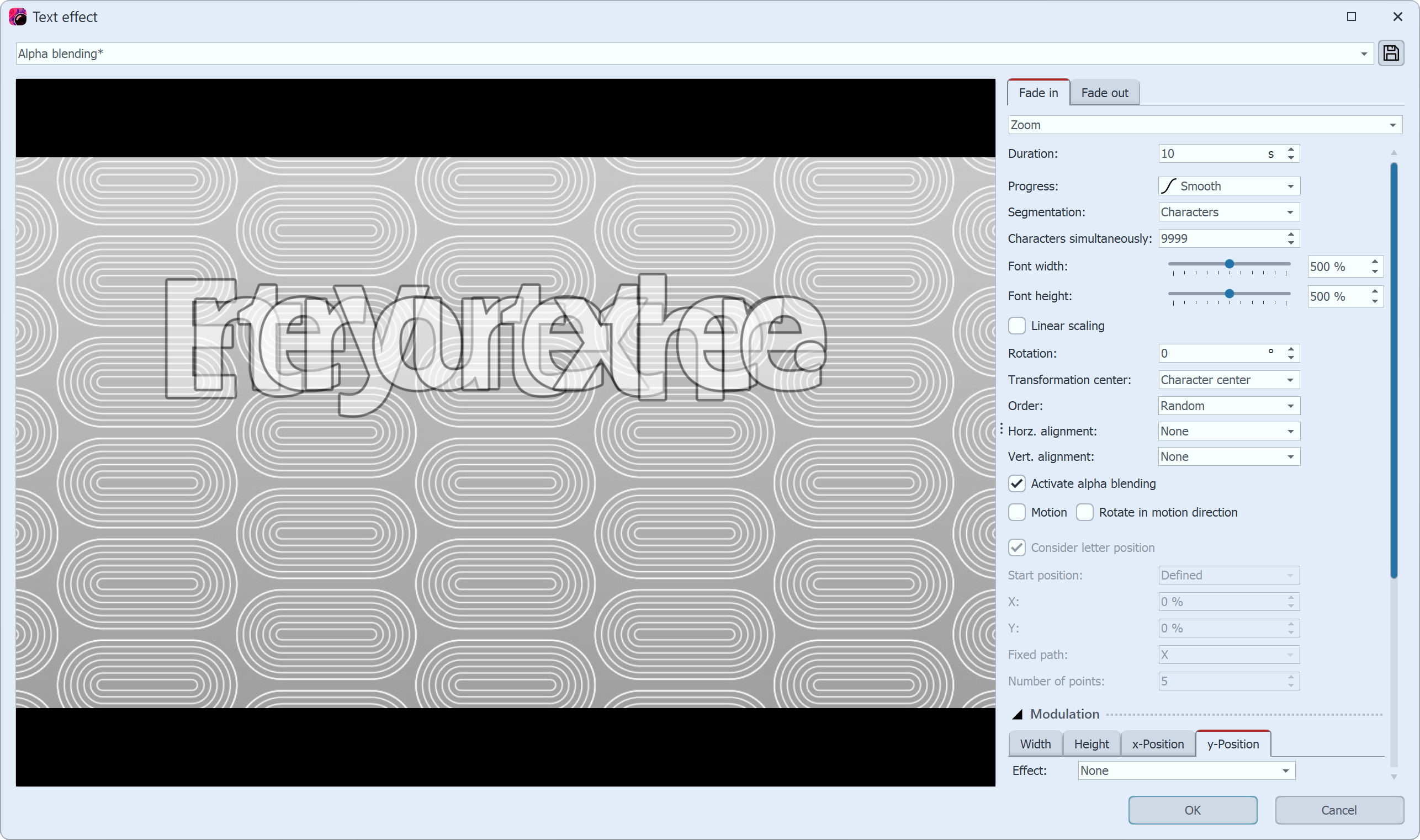
Edit text animation with preview
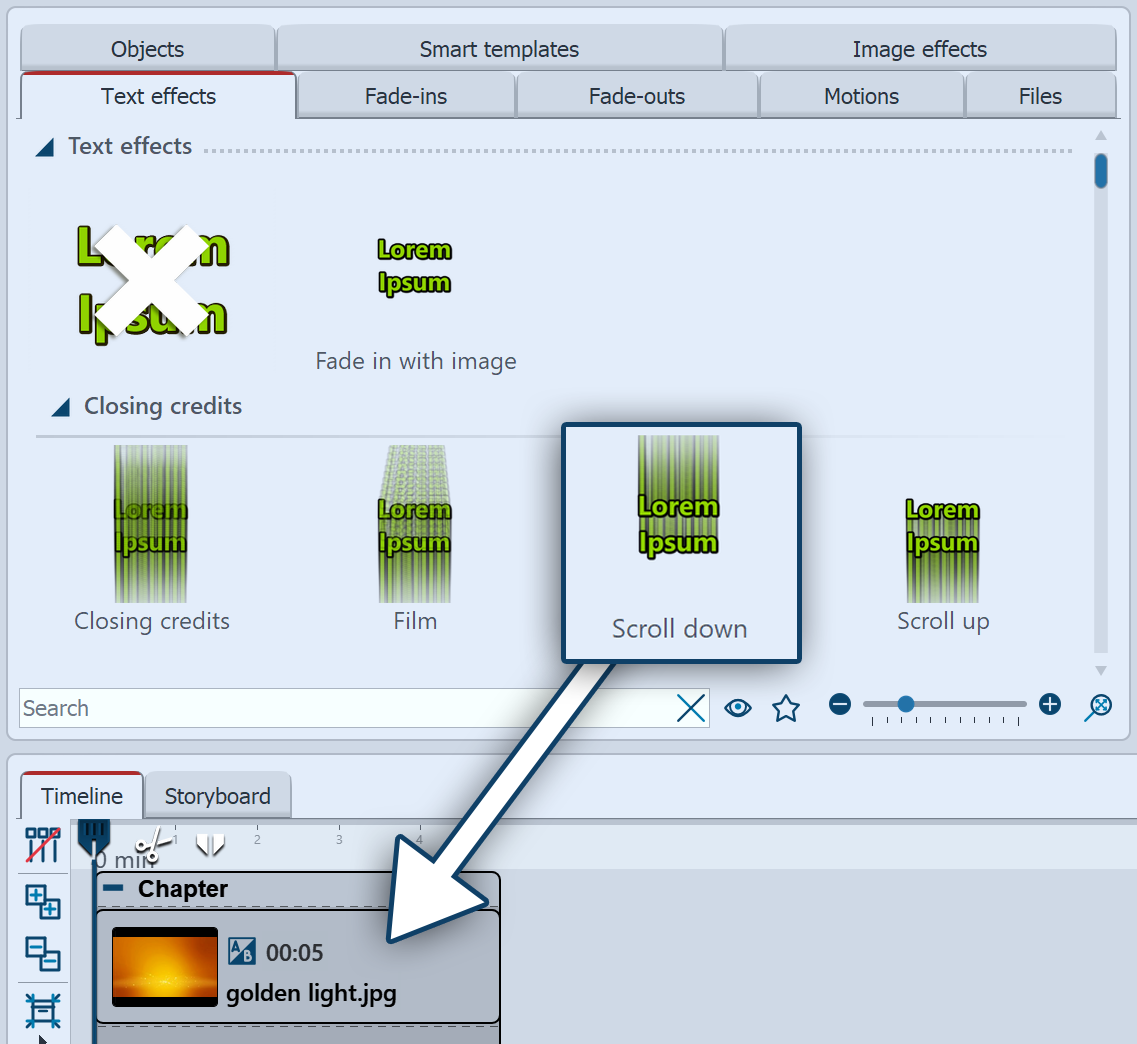 Drag text effect onto image in Timeline or Layout designer It is not only from the Properties window that you can select a Text fade-in or fade-out. In the Toolbox you can call the same Text animations as under Properties.Drag the desired Text effect from the Toolbox onto the image. If you want to use the same Text effect for all images, select all images by pressing the keys Ctrl + A . Now double-click on the desired Text effect. To remove a Text effect, first select the object in question in the Timeline. Then double-click the Remove text effect icon at the very top of the Toolbox. |
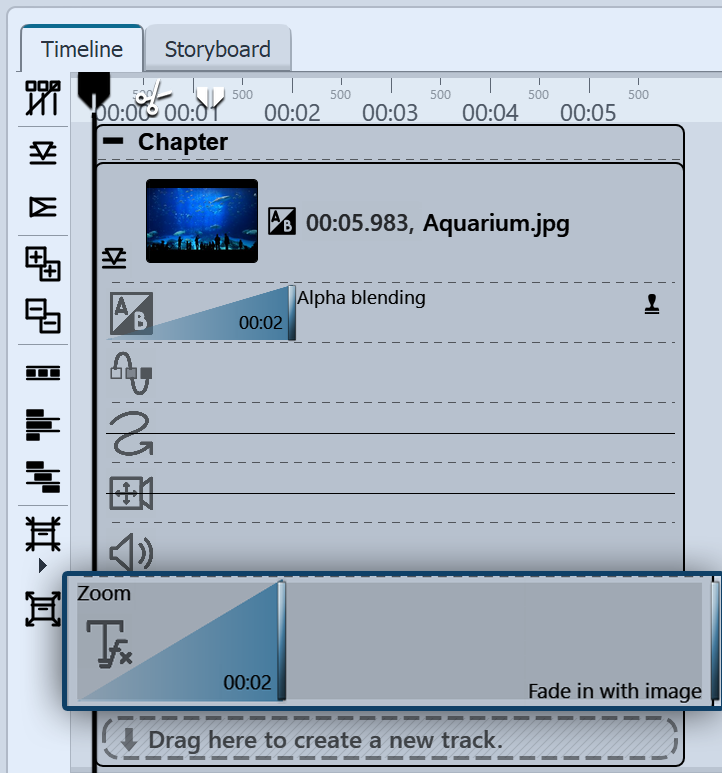 Keyframe track for text animation In Stages you can also control the duration of the Fade-in or Fade-out of the text via the Keyframe track. To do this, open the keyframe track and click in the track for the text animation. |
|
How to underline text is shown in our blog article "Text unterstreichen". |