|
<< Click to Display Table of Contents >> Sound Wizard |
  
|
|
<< Click to Display Table of Contents >> Sound Wizard |
|
With the help of the Sound Wizard you can record spoken comments and sounds via a microphone connected to the PC. There are two ways to use the Sound Wizard: •With the Toolbox object Sound recording you insert a Sound object into your project, for which you start a microphone recording directly with the insertion. •For Image objects via the Properties on the Sound tab with the Record button. |
 Sound recording When working with the Sound recording object, you get a Sound object that you can move and arrange freely in your project. You can also cut the sound with the playhead in the Timeline and adjust the volume of the sound object individually. |
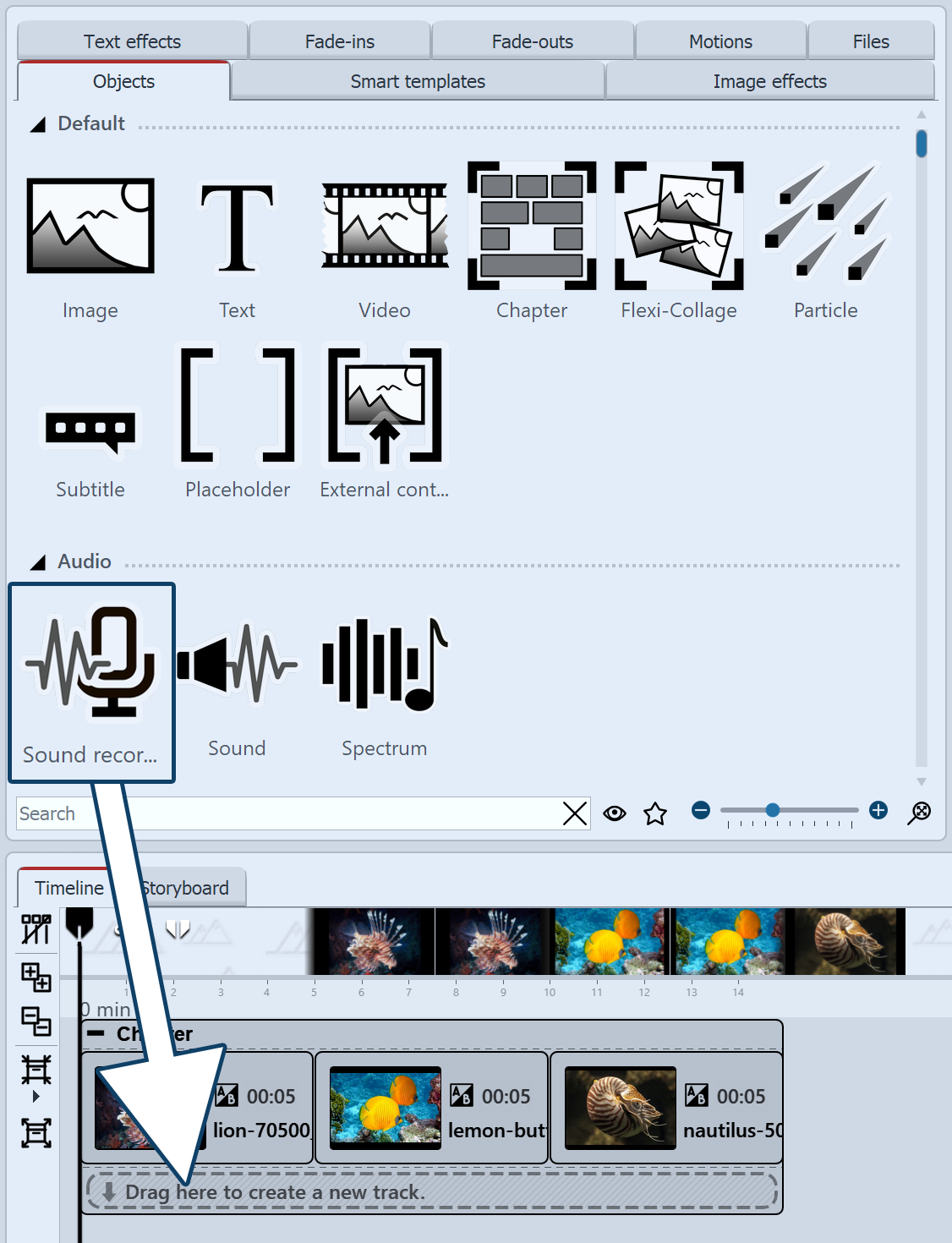 Use Sound recording object Drag the Sound recording object from the Toolbox to the Timeline to the position where you want to insert a comment. The Sound Wizard opens. Complete steps 2 and 3 described in the next section to record your sound. Then, to finish recording and send it to Timeline, click Finish in the Sound Wizard. |
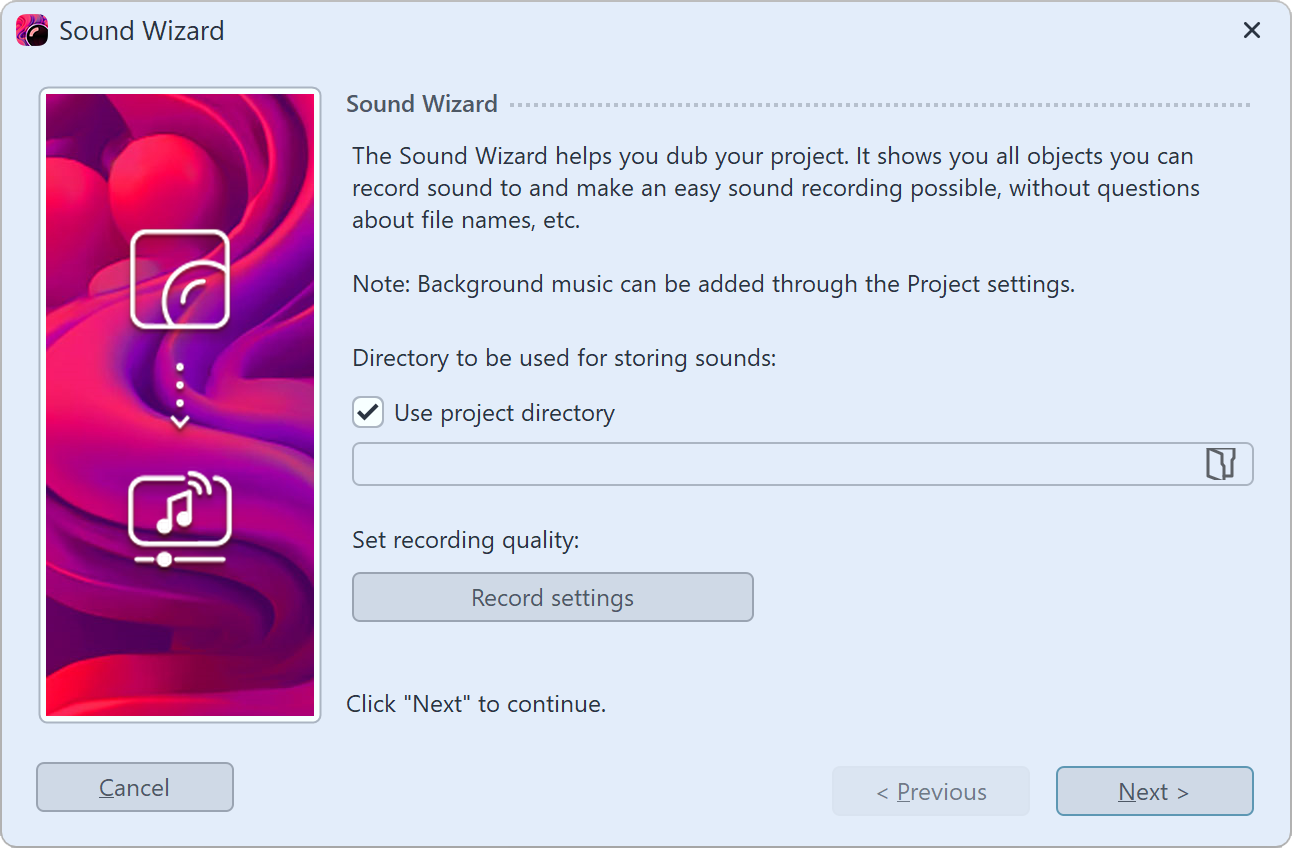 Recording directory and settings 1 Open Sound Wizard Select an image in the Timeline and go to the Sound tab in its Properties. Call up the Sound wizard via the Record button. 2 Set output directory If your ads project file has already been saved, the resulting files are saved in the project directory by default. To select a different directory, remove the corresponding tick. Click on the Folder icon on the right and select the directory in which you want to save the recordings. Recording settings takes you to the dialog for differentiating the settings for the sound recording, which you do not normally need to change. Then click on Next. |
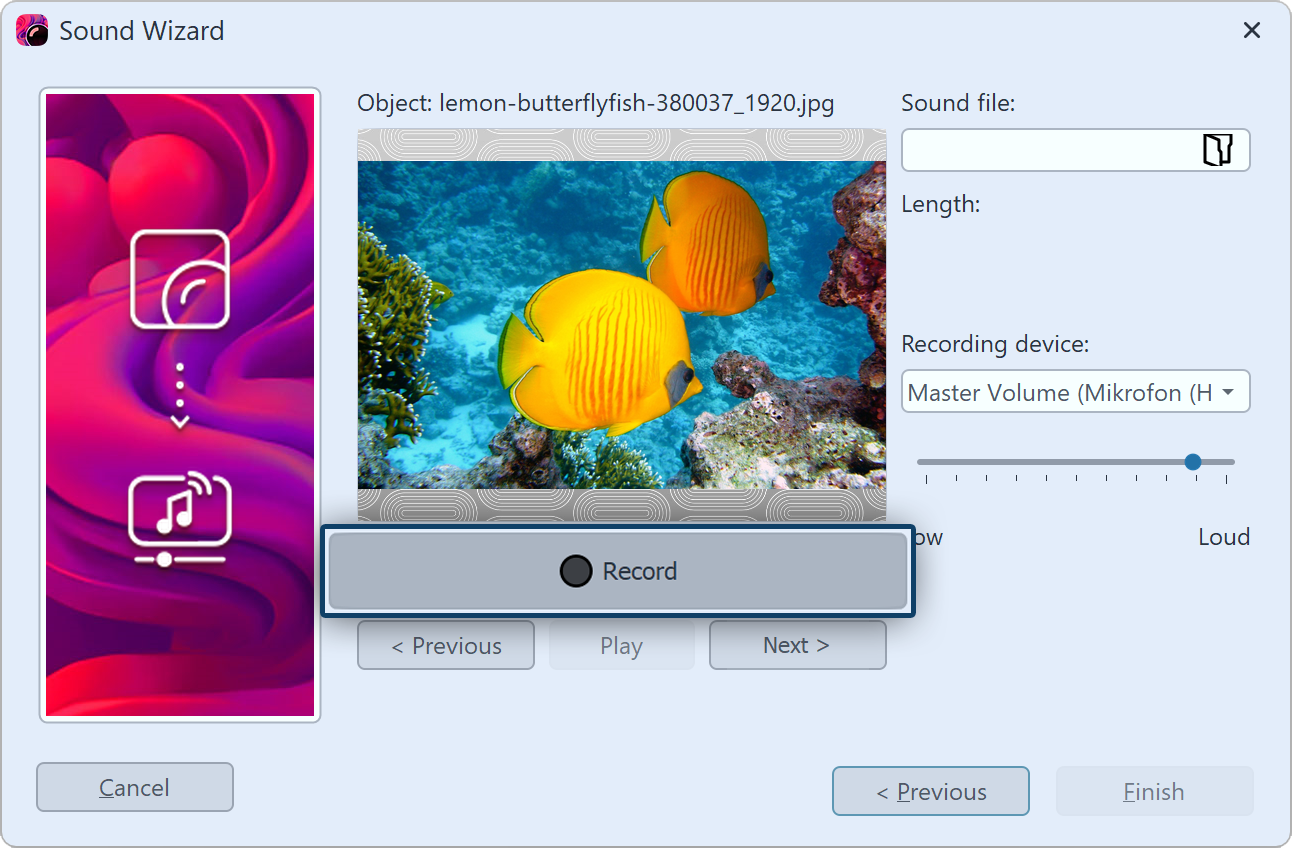 Record comment 3 Comment on single images Click Record and record the comment for the displayed image. If you misspeak, stop recording for the image and start again. You only need to speak the recording for the selected image again. Under Sound file you can open an already existing file. Under Recording device you select the microphone with which you want to record. Use the volume control to influence the recording volume. |
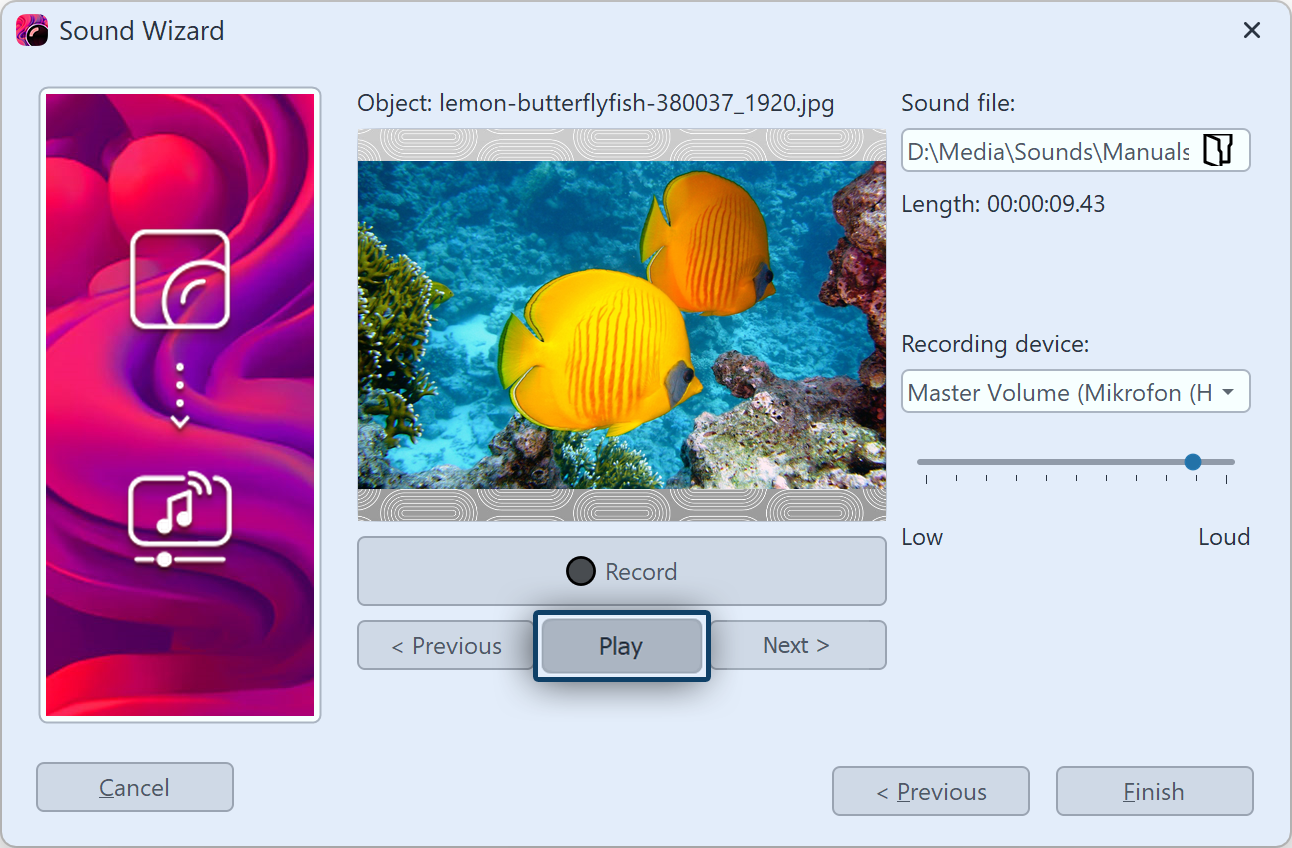 Listen to recorded comment 4 Listen to comment With Play you can listen to your recording. The Sound Wizard automatically assigns the recorded commentary to your images. The image display duration is automatically adjusted to the comment duration. Use the Next or Previous buttons to select the image for which you want to record a comment. |
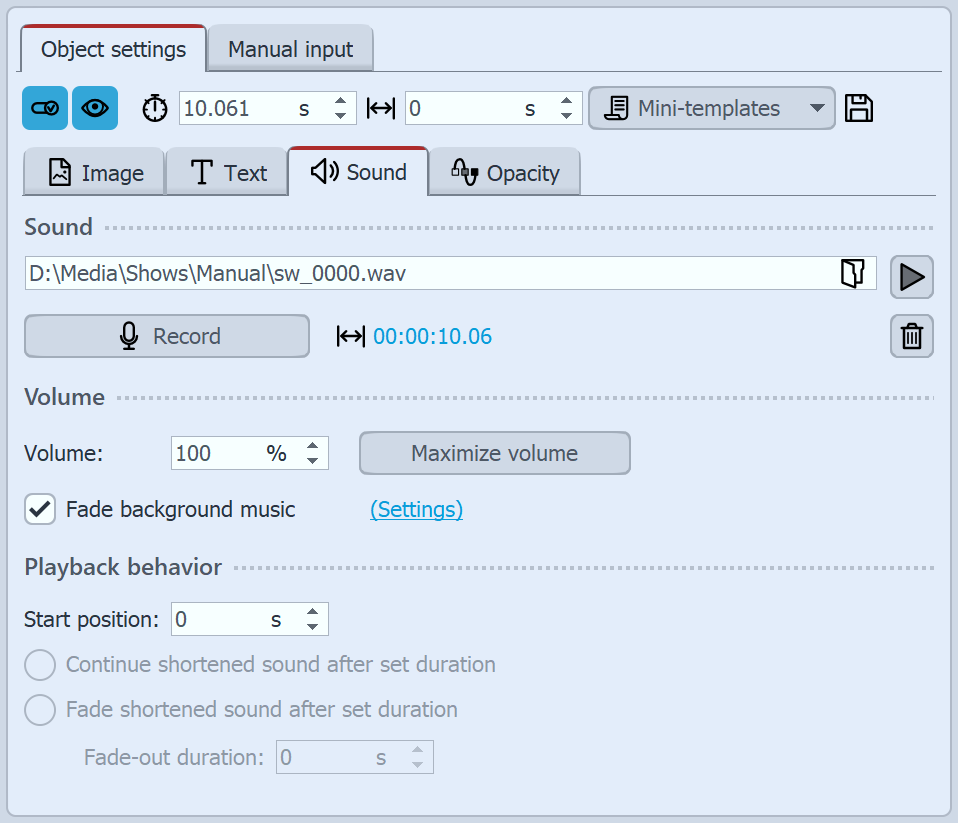 Sound in the image properties In the Object settings of the corresponding image you will find the recorded file. Via the Play button (triangle symbol), the recording can also be played back here. The sound can be removed via the Trash can icon. More about the sound properties can be found in the chapter "Sound". |
|
In our series "Diashow mit Tonkommentar" you will find many tips on the correct recording technique, sources of error and the voice as a means of design. |