|
<< Click to Display Table of Contents >> Edit the path |
  
|
|
<< Click to Display Table of Contents >> Edit the path |
|
In the Layout designer, call up the context menu, and you will find under the option editing the path that there are further options available to you. Alternatively, click on the icon in the Layout designer or call it up by right clicking in the Layout designer.
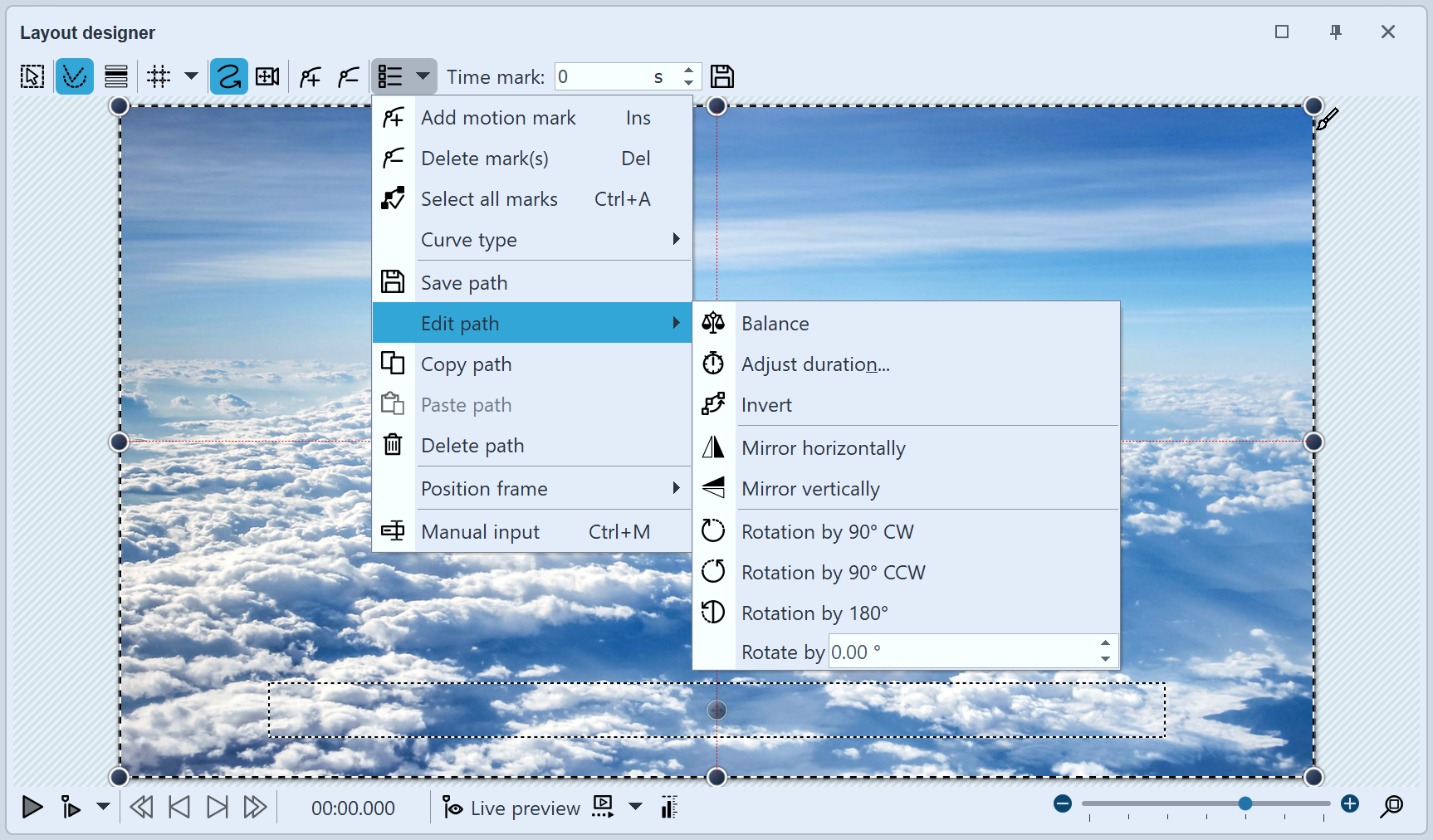
Options for path in the context menu
Curve type |
Depending on the selection, movements or changes of direction are either smooth or hard. You can find out more about the curve type in the Manual input chapter. |
Equalize |
Length of time between the motion marks is matched to the distance between the marks, so that the motion path is smooth. |
Simplify ... |
Smooth the path or remove marks. With increment 1, only the start and end points remain, increment 2 removes every second mark and so on. |
Adjust duration ... |
Shortens or lengthens the duration of the motion path to a preferred length in seconds or percent. |
Reverse |
The motion path is reversed in relation to the total duration of the object. |
Reverse motion |
The motion path is reversed in relation to the duration of the movement. |
Mirror horizontally |
Mirrors the motion path horizontally. |
Mirror vertically |
Mirrors the motion path vertically. |
Rotation by 90° CW |
Rotates the motion path by 90° clockwise. |
Rotation by 90° CCW |
Rotates the motion path by 90° counterclockwise. |
Rotation by 180° |
Rotates the motion path by 180° clockwise. |
Rotation by ... |
Rotates the motion path to any angle. |