|
<< Click to Display Table of Contents >> Use shapes |
  
|
|
<< Click to Display Table of Contents >> Use shapes |
|
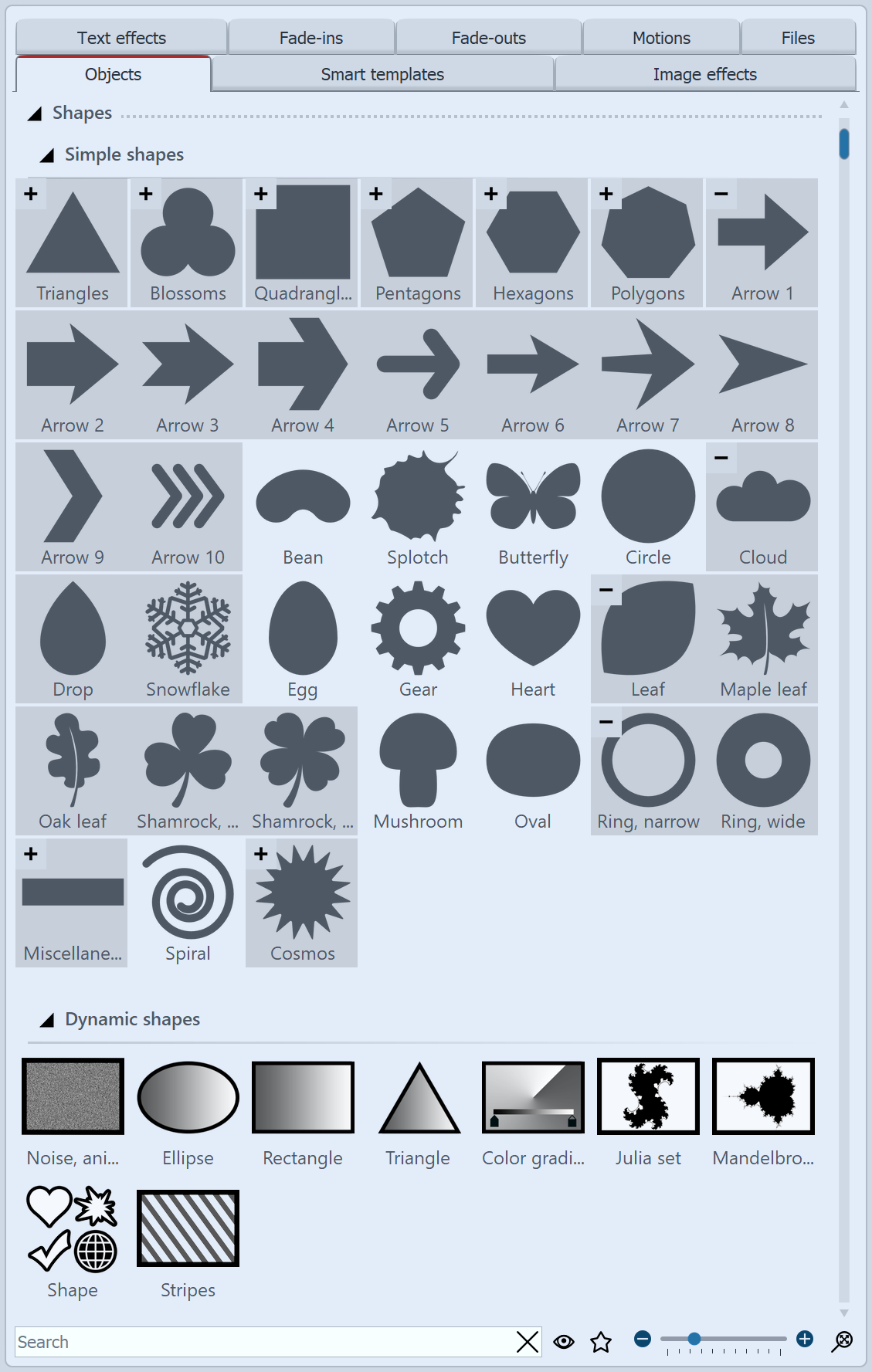 Shapes in the Toolbox You can find the Shapes in the Toolbox under the Objects tab. You can combine the shapes with each other, use them for design and also use them as a mask in the Mask effect. This gives you a flexible tool for many use cases. A distinction is made between Simple shapes and Dynamic shapes. Simple shapes can be resized and positioned. They can be colored by image effect (including the gradient image effects), in the image editor or with the help of the live color effect. The simple shapes can be faded in and out directly in the properties. Dynamic shapes have their own setting options in the properties. You can create a gradient over two colors or set a soft border in the properties. In the properties of the Ellipse, Rectangle, Star/Flower, Triangle, and Shape Selection tools, among others, you can create a two-color gradient or set a soft edge. For complex color gradients, you can also use the special Color gradient shape and the Stripe object. You can create complex animated gradients using the “Noise” object. Use Julia sets and apple figures to create fractal shapes. Use the small +/- icons to access or collapse additional shape variations. Use the Shapes by dragging them from the Toolbox to the Timeline. |
|
You can find two projects in which the shapes were used under File / Open / Sample project. You can find the sample projects under the title "Mask with particles" and "Quote with image". |